
Pair a device
Dieser Inhalt ist noch nicht in deiner Sprache verfügbar.
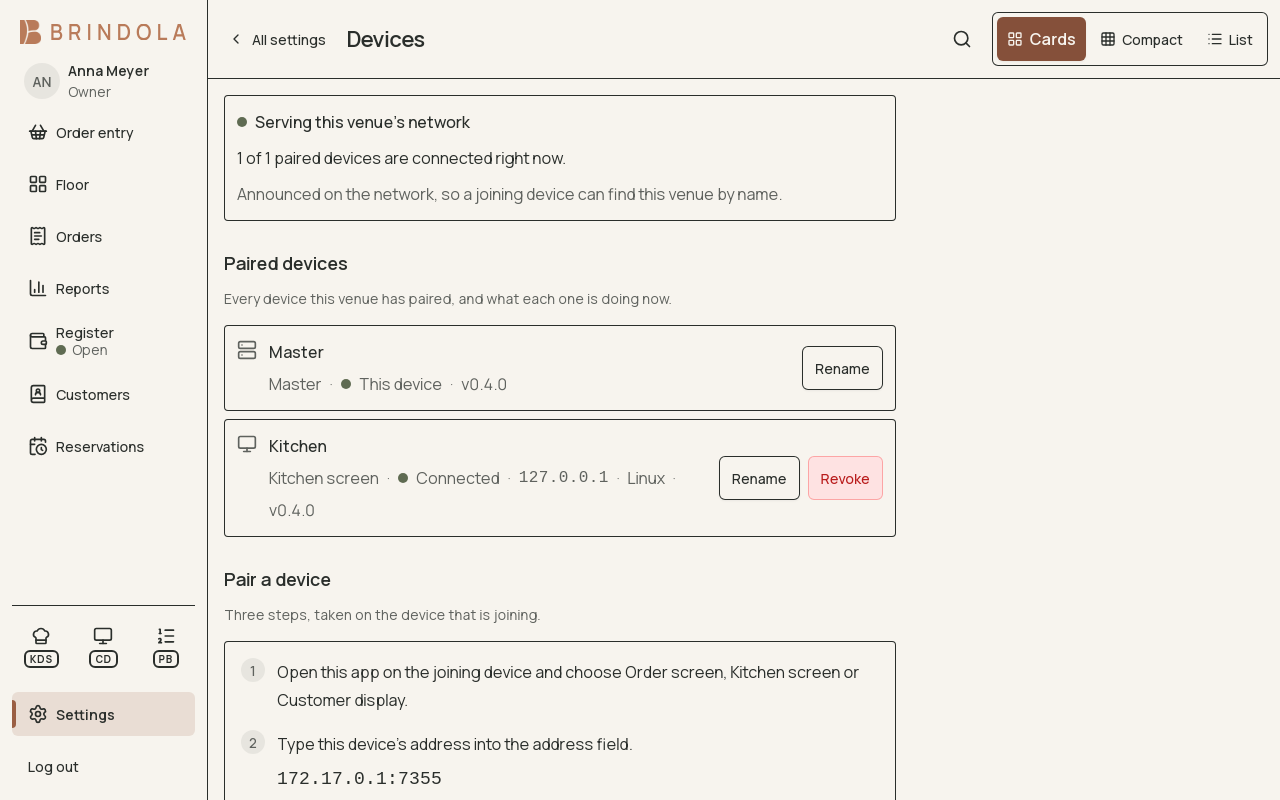
The main device and a kitchen companion identified by name.
Pairing joins another device to your venue, so it works from the same orders, catalog and staff as the main device. The devices talk over your own network, with no internet needed, using a six-digit code the main device shows for five minutes.
- Turn on multi-device
- Show a code
- Choose a role on the new device
- Type the address and code
- Check it in Paired devices
Before you start
Section titled “Before you start”| You need | Why |
|---|---|
| The main device on, with Brindola open | It holds the venue. Every paired device connects to it. |
| Permission to manage devices | Devices is under Settings → Connections, on the main device only; an owner or manager has it. |
| Brindola installed on the new device, never set up | Install Brindola on the computer, tablet or phone you want to pair. On an Android phone or tablet, get Brindola POS from Google Play. On a computer, use the download page. It joins the existing venue; do not create another venue on it. |
| Both devices on the same network | The same Wi-Fi or the same cable, not the guest network. |
The main device is a computer. Keep it on a cable and on power: every other screen relies on it.
1. Turn on multi-device
Section titled “1. Turn on multi-device”- On the main device, open Settings → Connections → Devices.
- Select Turn on multi-device. The page now shows the venue network, Paired devices and Pair a device.
The switch for later is Run more than one device, under The venue network.
2. Show a code
Section titled “2. Show a code”Under Pair a device, select Show a code. You see:
- This device’s address, such as
192.168.1.10:7355. If there are several, any one that the new device’s network can reach will do. - A six-digit code. It works once, for five minutes (Good for another 4:59). Show a new code replaces it; the old one stops working.
- This device’s fingerprint, such as
3FA2 9C01. You will compare it in step 4.
3. Choose the role on the new device
Section titled “3. Choose the role on the new device”- Open Brindola on the new device. A phone or tablet opens the pairing screen directly. On a computer, choose Join a venue that is already set up on the welcome screen.
- At What is this screen for?, choose its role. A phone offers Order screen; a tablet or computer also offers the other roles below.
| Role | For | Sign-in |
|---|---|---|
| Order screen | A second terminal; on a phone, taking orders at the table | Staff sign in with their PIN |
| Kitchen screen | Showing the kitchen what to cook | None |
| Customer display | Showing the guest their order, or the pickup board | None |
| Self-service kiosk | Letting guests order for themselves | None |
On a phone, staff take orders, send them to the kitchen and call the bill. The guest pays at the counter. A phone can also count stock and receive deliveries when Inventory is enabled.
A customer display asks What should this screen show? after it joins: Pickup board, Customer order display (and which terminal to mirror) or Camera wall.
4. Type the address and the code
Section titled “4. Type the address and the code”- Select Scan for masters. If the main device is found, its address fills in. If not, type the address from step 2 into Master address.
- The screen shows Found a main device — fingerprint …. Check the characters match the fingerprint on the main device. If they differ, you have found another device: stop.
- Type the Pairing code.
- Give the device a name staff will recognise: Floor 1, Kitchen, Bar.
- Select the join button: Join as an order screen, Join as a kitchen screen, Join as customer display or Join as self-service kiosk.
5. Check it in Paired devices
Section titled “5. Check it in Paired devices”On the main device, the new device appears under Paired devices with its role and Connected. Each row shows the device’s address while connected, its system and its Brindola version.
An order screen opens on the sign-in screen. Staff are the venue’s staff, and PINs are set on the main device under Settings → Staff, not on the order screen.
Manage paired devices
Section titled “Manage paired devices”- Rename: Rename on the device’s row.
- Update: when a device runs an older version than the main device, its row offers Update.
- Revoke: Revoke, then Confirm within three seconds. The device shows This device was revoked, wipes its pairing and returns to setup. A revoked device stays in the list as Revoked; there is no way to delete the row.
- Turn multi-device off: paired devices stop working until it is on again. Nothing is unpaired or deleted, and turning it back on brings them back with no code.
- Port: the venue network uses port 7355. Change it only if something else on the main device uses that port. Every paired device then needs the new address.
Move or reset a device
Section titled “Move or reset a device”To pair a device again, or to a different venue, reset it first. Resetting wipes the device’s own copy and pairing, never the venue, which lives on the main device:
- Order screen: Connection in the side menu, then Reset this device.
- Kitchen screen: the cog, Screen settings, then Device setup and Set up this device again….
- Customer display: Reset this device.
- Kiosk: Pair again in its maintenance menu.
Then pair it as in steps 2–4. Revoke its old row on the main device.
When the main device is off or unreachable
Section titled “When the main device is off or unreachable”Paired devices show Connecting to the master…, and after 30 seconds Connection to the master lost — data may be out of date. On an order screen, new orders can still be taken: they are marked OFFLINE — queued and reach the main device when it is back. Payments, and changes to existing orders, wait for the main device. A kiosk asks guests to order at the counter. When the connection returns, every device catches up. If the main device has failed for good, see When the internet goes down.
Questions
Section titled “Questions”What does “invalid or expired pairing code” mean?
Section titled “What does “invalid or expired pairing code” mean?”The code was mistyped, has passed its five minutes, or was withdrawn after five wrong attempts. Select Show a new code on the main device and type the new one.
What does “master unreachable” mean?
Section titled “What does “master unreachable” mean?”The new device cannot reach the main device at that address. Check both are on the same network (not a guest network), that the address and port are typed exactly, and that multi-device is on. Some networks block the scan; typing the address still works.
The main device says my licence does not cover another device. Why?
Section titled “The main device says my licence does not cover another device. Why?”Pairing is part of Plus and Enterprise, and a licence covers a set number of paired devices. The message appears when you select Show a code. Settings → Licence shows your plan and how many devices it covers.
Does a paired device need the internet?
Section titled “Does a paired device need the internet?”No. Paired devices talk to the main device over your own network.
Can the main device be on Wi-Fi?
Section titled “Can the main device be on Wi-Fi?”Yes, but a cable is steadier, and every other device depends on it.
Does a kitchen screen or a customer display need a staff sign-in?
Section titled “Does a kitchen screen or a customer display need a staff sign-in?”No. Only an order screen asks staff to sign in.