
AI assistants
هذا المحتوى غير متوفر بلغتك بعد.
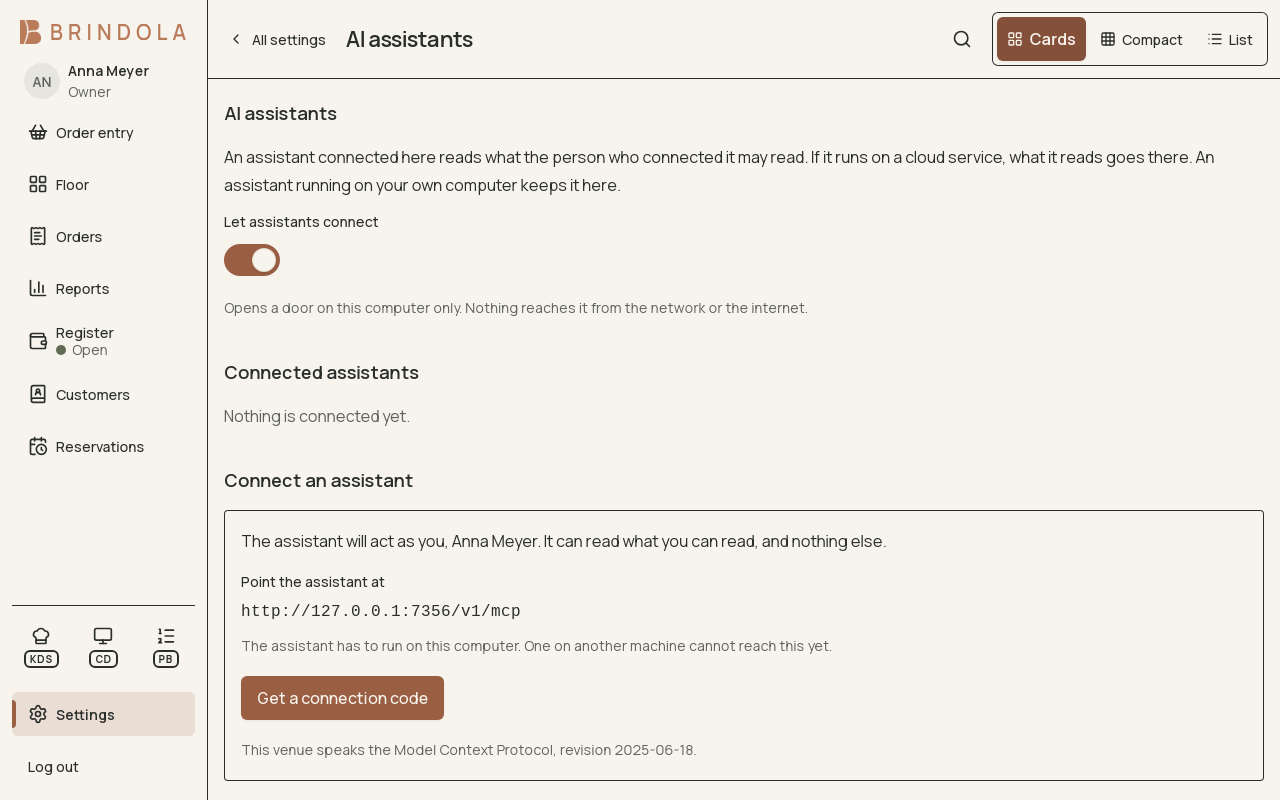
The connection offer and explanation of permitted access, without a live code.
An AI assistant can read permitted venue information through MCP. Enable AI assistants in Settings and connect it under the person whose access it should use.
Before connecting
Section titled “Before connecting”Decide what information the assistant needs and where it runs. If it uses a cloud service, the information it reads goes to that service. An assistant running on your own computer keeps its work there.
Check that the chosen client supports the connection method offered by your installed Brindola version. Current access is read-only and local to the main computer; do not expose the endpoint to the internet to make a remote client reach it.
Pair the assistant
Section titled “Pair the assistant”- Sign in as the person the assistant will act for.
- Open Settings → AI assistants and enable the module if needed.
- Use the connection controls and the short-lived pairing code with the compatible client on the main computer.
- Confirm the new entry in connected assistants.
- Ask a small question within that person’s permissions and verify the answer against the report or record in Brindola.
The connection does not give the assistant a separate manager identity. Its access follows the associated person’s permissions.
Read the answer critically
Section titled “Read the answer critically”Ask for a date range and scope, especially for sales and service reports. Check that the answer refers to the correct business date, brand and channel. For an operational decision, open the underlying Brindola view and compare it.
Disconnect
Section titled “Disconnect”Remove the assistant from the connected list to revoke its access. Do this when changing tools or when the associated person no longer needs the connection. Disconnecting prevents future reads; it cannot retrieve information already sent to an external service.