
Staff, roles and approvals
هذا المحتوى غير متوفر بلغتك بعد.
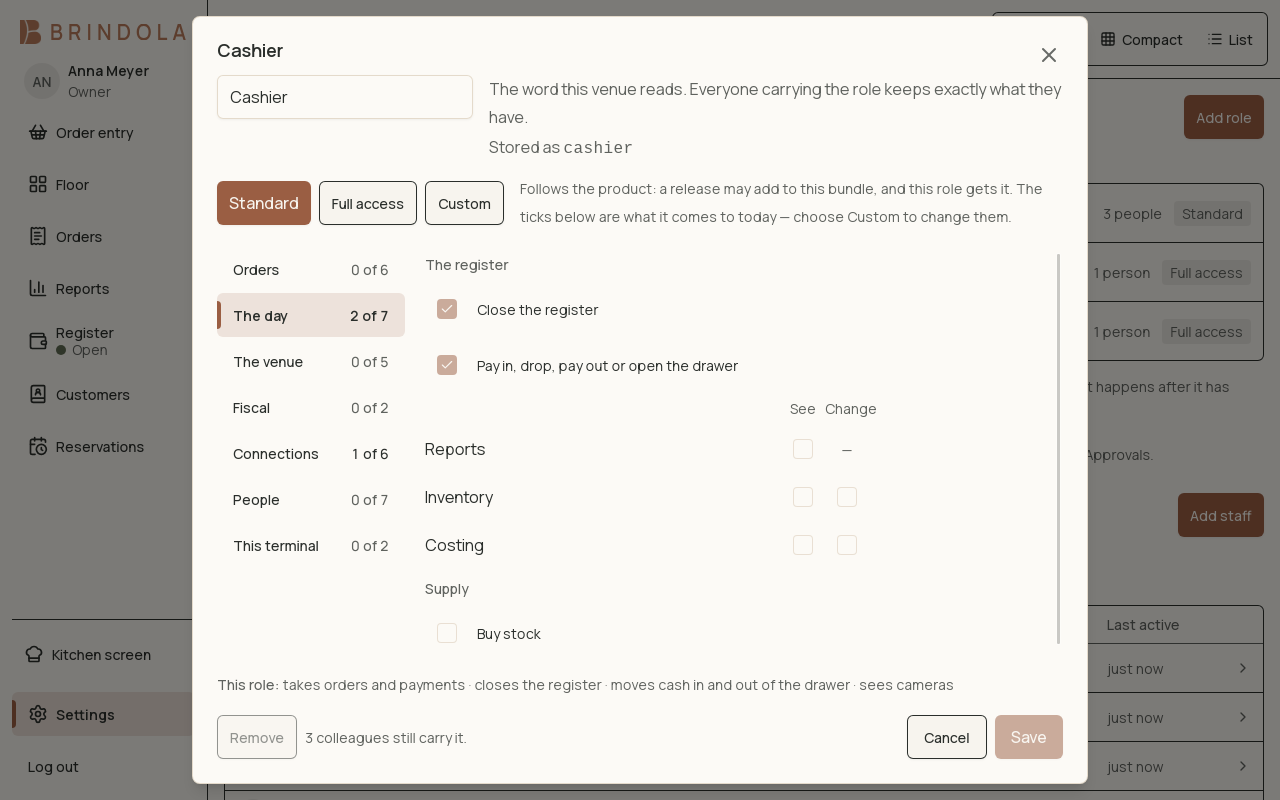
A role with its grouped permissions, open on the day's register grants.
Give each person their own sign-in so sales, approvals and corrections can be attributed correctly. Use roles to grant the work a person needs to do.
Add staff access
Section titled “Add staff access”- Open staff settings with an authorised account.
- Create the person and assign the appropriate role.
- Set up their PIN using the provided controls.
- Sign in as that role and rehearse its normal work.
- Check an action requiring approval and confirm the approving person’s identity is recorded.
Keep owner and manager PINs private. Sharing an approval PIN makes the record unable to distinguish who approved the action.
Review permissions
Section titled “Review permissions”Selling, voiding, refunds, drawer access, reporting and connection management are different responsibilities. Read the role’s grants instead of assuming that a familiar role name includes every administrative action.
An action may remain visible while requiring approval. A staff member should ask an authorised person to approve it rather than borrowing their sign-in for the entire service.
Staff leaving or changing jobs
Section titled “Staff leaving or changing jobs”Remove unnecessary access promptly. Preserve the history of their work rather than renaming an old person’s account for a new employee. Review any devices or assistants connected under that person’s authority.
Troubleshoot access
Section titled “Troubleshoot access”Check the current signed-in person, role permissions, venue licence and module switch. A missing feature and a denied action can have different causes. Device and staff limits are shown by the venue’s licence; see Plans.