
Set up a kitchen screen
هذا المحتوى غير متوفر بلغتك بعد.
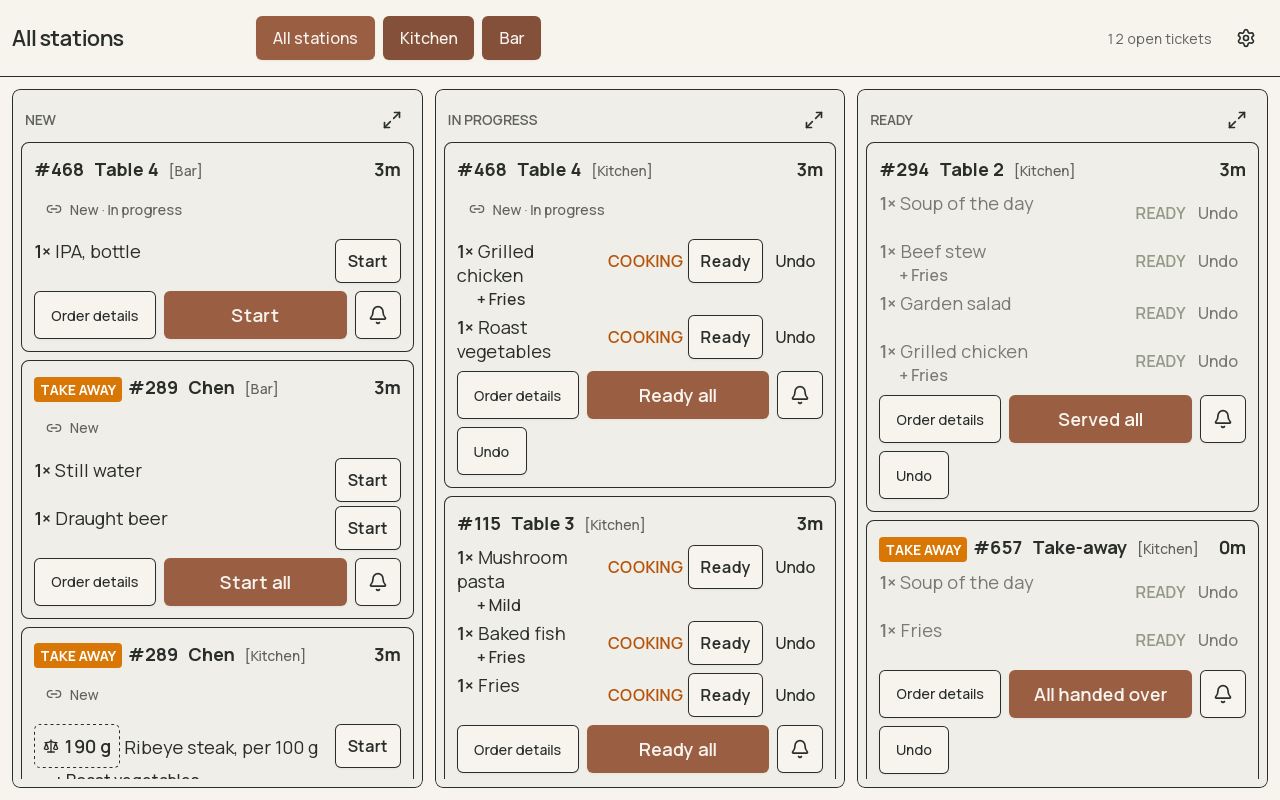
Live tickets with station labels, modifiers and preparation ages.
A kitchen screen is Brindola’s kitchen display (KDS): a screen in the kitchen that shows each order as a ticket for the station that prepares it, instead of a printed ticket or alongside one. Orders reach it over your own network, so it keeps working when the internet is down.
- Name your stations
- Route catalog items
- Choose screen, printer or both
- Open or pair the screen
- Test with a real order
Before you start
Section titled “Before you start”| You need | Why |
|---|---|
| Brindola installed on the main device, with first run done | The main device holds the venue: stations, routing and every order. |
| Permission to change hardware settings | Stations is under Settings → Hardware; an owner or manager has it. |
| For a second device: a Windows or Linux PC or tablet with Brindola installed | A kitchen screen is the Brindola app, not a web page. There is no browser, iPad or Android version. |
| For a second device: the same network as the main device | The same Wi-Fi or the same cable, not the guest network. |
| For a second device: the Plus or Enterprise plan | The 14-day trial includes it. |
If you answered Yes to Is there a kitchen that needs tickets? during first run, a station called Kitchen already exists and every item goes to it. That is a working setup: skip to step 4, and come back when you need more than one station.
1. Name your stations
Section titled “1. Name your stations”A station is a place where orders are prepared: the grill, the bar, the cold section. Each station is a screen, a printer or both.
- Open Settings → Hardware → Stations.
- If the page offers Turn on stations, turn them on.
- On the Stations tab, select Add station for each place that prepares orders.
- Give each one a short id (for example
grill) and a Name staff will recognise (Grill). The id goes on every ticket, so choose it once and keep it; the name can change later. - Select Save.
The first station in the list is the default: anything you have not routed elsewhere goes there. Put your main kitchen first.
2. Route catalog items to stations
Section titled “2. Route catalog items to stations”Routing decides which station an item goes to. Open the Routing tab on the same page.
- Most items follow a category or brand rule. Under Category, brand and individual rules, select Add rule, choose Section (a catalog category) or Brand, and the station. Example: the Drinks section goes to Bar.
- One item can override its category. In the item table, search for the item and choose its Preparation station. Use inherited routing puts it back under the rule above it.
- Several at once: tick the items and use Assign selected.
The most specific rule wins: item, then category, then brand, then the default station. Under each item a caption says which one it is following: Product override, Category rule, Brand rule or Default station. Packaging items show No preparation needed and never reach a kitchen.
The catalog shows each item’s station too, with an Edit routing link back to this tab. The station is set here, not in the catalog.
Routing is applied when an order line is sent. A change affects items sent from then on; tickets already on a screen stay where they are.
3. Choose screen, printer or both
Section titled “3. Choose screen, printer or both”Each station on the Stations tab has an output:
| Output | What happens |
|---|---|
| Screen | Tickets appear on kitchen screens. Nothing prints. |
| Printer | A ticket prints on the station’s printer. No screen shows it. |
| Both | Both. With no printer chosen, it works as Screen. |
To print, the printer first needs the Kitchen tickets role under Settings → Printing → Printers; then choose it for the station. See Set up printers and the cash drawer.
To move a kitchen from paper to screens gradually, set its station to Both for the first services and to Screen once the team is ready. A bar can stay on Printer while the kitchen uses a screen. There is no separate “stop printing” switch: each station’s output is that switch.
4. Open the kitchen screen
Section titled “4. Open the kitchen screen”On the main device
Section titled “On the main device”Select Kitchen screen in the sidebar. It opens in a window of its own, which you can drag to a second monitor in the kitchen. No pairing and no sign-in. The button is there once at least one station’s output is Screen or Both.
On a second device
Section titled “On a second device”On the main device:
- Open Settings → Connections → Devices.
- If multi-device is off, select Turn on multi-device.
- Under Pair a device, select Show a code. A six-digit code appears beside the main device’s address. The code works once, for five minutes.
On the kitchen PC or tablet:
- Install Brindola and open it. On the welcome screen, choose Join a venue that is already set up.
- At What is this screen for?, choose Kitchen screen.
- Select Scan for masters to find the main device, or type its address (for example
192.168.1.10). - Type the Pairing code, and a Screen name such as Kitchen or Bar.
- Select Join as a kitchen screen.
From then on the device starts straight into the kitchen screen, with no sign-in. On the main device it is listed under Paired devices as a kitchen screen.
Choose the station
Section titled “Choose the station”The buttons along the top of the kitchen screen are All stations and one per station. All stations is the pass view: every ticket, each marked with its station. A screen shows one station or all of them, and it opens on All stations every time the app starts, so select its station again after a restart.
5. Set warning times and the layout
Section titled “5. Set warning times and the layout”For every kitchen screen in the venue, open Settings → Hardware → Stations → Screens:
- Amber after (min), 8 by default, and Red after (min), 15: a ticket changes colour as it waits, and shows a warning sign at red.
- Bump undo window (s), 10: how long a wrong tap can be undone.
- Online order decisions: which screen accepts or rejects delivery-platform orders, if you take them.
For one screen, use the cog on the kitchen screen (Screen settings):
- Ticket size: Roomy for a screen read from across the room, Normal, or Tight to fit more tickets.
- Lanes: Side by side or Stacked.
6. Test before service
Section titled “6. Test before service”- From each terminal that takes orders, ring up one item for every station and send it.
- Check that each station’s screen shows exactly its own items, and All stations shows them all.
- Tap Start, then Ready, on one ticket, then Undo within the undo window.
- If a station prints, check its ticket came out of the right printer.
- With a second device, unplug the main device’s network cable for a moment. The kitchen screen shows Connection to the master lost — data may be out of date. Plug it back in and check the board catches up.
Work a ticket
Section titled “Work a ticket”- Read the order, the table or order number, and the modifiers before starting.
- Tap Start when you begin (on the whole ticket or one dish), and Ready when it is done. The ticket moves through the New, In progress and Ready lanes.
- In Ready, tap Served for a table, or Handed over for take-away and delivery.
- Tapped the wrong ticket? Undo stays on it for the undo window.
The bell, Call the front, tells the floor We’re out of it, This will be late or Question about this order, or asks someone to come to the station.
A ticket’s colour shows its age: amber, then red, at the times set in step 5. A kitchen status says nothing about payment; a ticket can be served before or after the bill is paid.
- Order sent
- Start
- Ready
- Served or handed over
When the internet or the main device is down
Section titled “When the internet or the main device is down”- Internet down: nothing changes. Orders, tickets and taps travel over your own network.
- Main device off or unreachable: a paired kitchen screen shows Connection to the master lost — data may be out of date, and taps on tickets fail until it is back. When the connection returns, the screen catches up on everything it missed. This is why the main device belongs on a cable and on power.
- Could not load tickets — this is NOT a clear board, check the connection means the screen cannot reach the main device. The kitchen is not clear.
Questions
Section titled “Questions”Why is an item missing from a kitchen screen?
Section titled “Why is an item missing from a kitchen screen?”Check the station selected at the top of the screen first, or switch to All stations. Then check that the order line was sent from the terminal, that the item routes to that station (the Routing tab under Settings → Hardware → Stations shows its station and why), and that the station’s output is Screen or Both.
Can the bar and the kitchen have separate screens?
Section titled “Can the bar and the kitchen have separate screens?”Yes. Create a station for each, route the drinks section to the bar, pair one device per station, and select the station at the top of each screen. Another screen can show All stations for whoever runs the pass.
How do I stop kitchen tickets printing once the screen is in use?
Section titled “How do I stop kitchen tickets printing once the screen is in use?”Set the station’s output to Screen under Settings → Hardware → Stations. Each station is set on its own, so the bar can keep printing while the kitchen goes paperless.
Does the kitchen screen need a staff sign-in?
Section titled “Does the kitchen screen need a staff sign-in?”No. A kitchen screen opens without a sign-in, and all it can do is work tickets and, if it is chosen for them, accept or reject delivery-platform orders. It cannot take payments, open reports or change settings.
Can I use an iPad, an Android tablet or a web browser as a kitchen screen?
Section titled “Can I use an iPad, an Android tablet or a web browser as a kitchen screen?”Not today. A kitchen screen is the Brindola app on a PC or tablet running Windows or Linux.
What happens on the screen when an item is voided?
Section titled “What happens on the screen when an item is voided?”The voided item disappears from its ticket, and when a whole order is voided its ticket leaves the screen. Stop work on it and check what remains.
Does the kitchen screen make a sound?
Section titled “Does the kitchen screen make a sound?”It chimes when a delivery-platform order is waiting to be accepted and when a scheduled pre-order is released to the kitchen. Tickets from your own terminals arrive silently.
Does a ticket come back after it is marked served?
Section titled “Does a ticket come back after it is marked served?”No. A served ticket leaves the screen. If you marked it by mistake, use Undo before the undo window ends.