
Cameras and guest displays
This content is not available in your language yet.
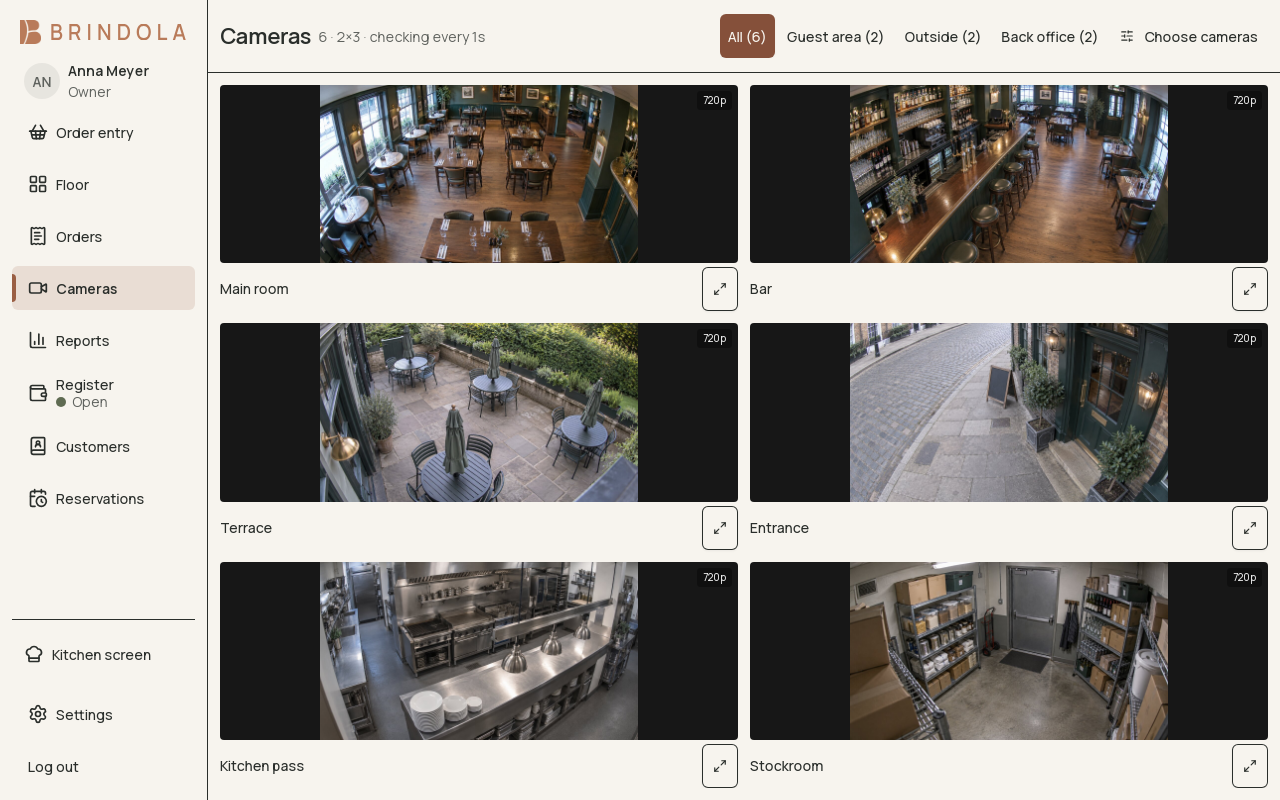
Configured camera tiles with their area labels.
Cameras, pickup boards and customer displays have different jobs. Configure the view each device needs and keep staff-only information away from a guest-facing screen.
Cameras
Section titled “Cameras”Enable the camera module and configure the supported source on the main device. Brindola can work with UniFi Protect and plain RTSP sources. Group cameras by area, check the feed and place the camera’s viewing direction on the floor plan where useful.
Camera credentials stay on the main device. A paired screen receives its view through that device. Brindola does not replace the recorder or its retention settings.
If a feed is missing, check the source, credentials and reachability from the main device. A camera visible in its vendor’s app may still be unreachable from the venue’s network.
Customer display
Section titled “Customer display”A customer-facing screen shows the current order and its charges. Pair and assign the display, then create a test order from the counter it should follow. Confirm that adding an item and changing the bill updates the intended screen.
Pickup board
Section titled “Pickup board”Use a pickup board to show preparing and ready orders. Verify it follows the same work the kitchen is marking. A ready label tells the guest about preparation, not about payment collection.
Position and access
Section titled “Position and access”Walk to the place a guest or operator will stand. Check readability, sleep behaviour and what appears when the device reconnects. Give camera access only to the staff roles that need it; see Staff and permissions.