
Floor plan
This content is not available in your language yet.
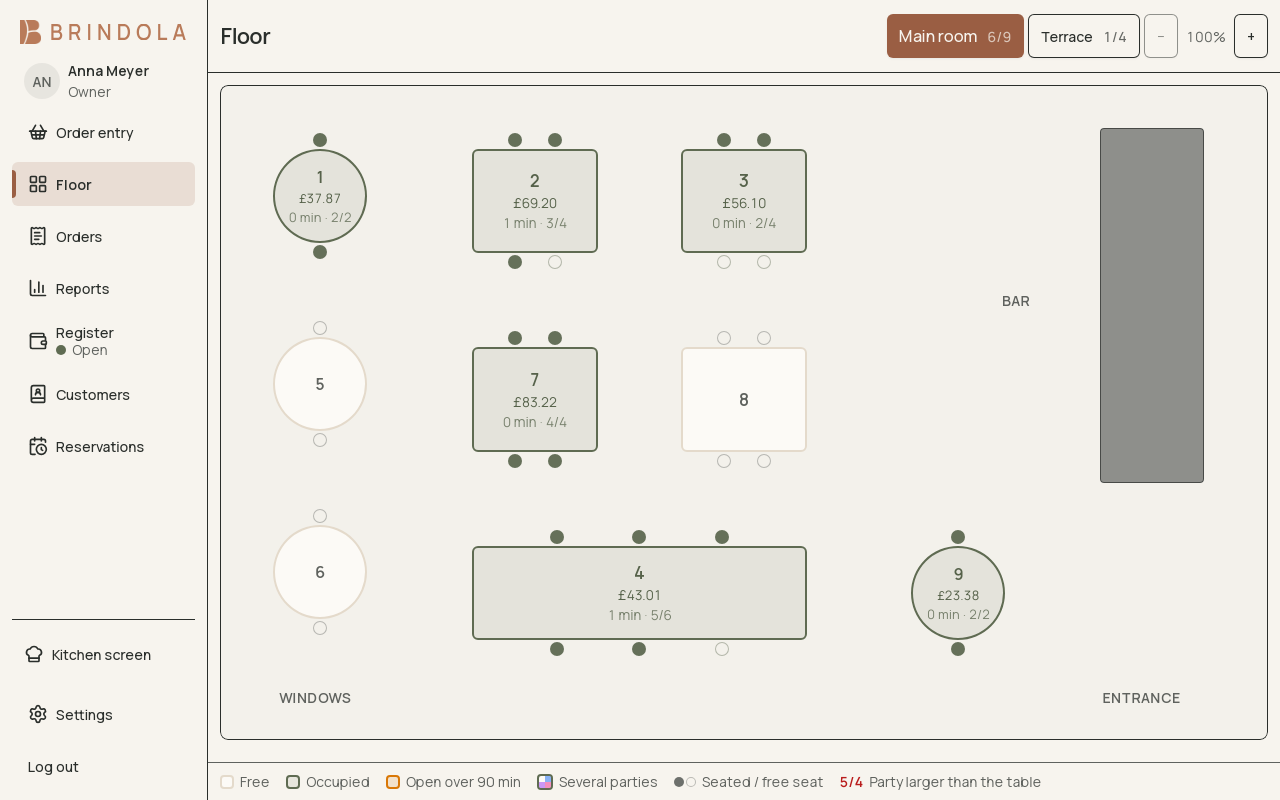
Two zones with free and occupied tables and recognisable table names.
The floor plan gives staff a shared picture of the room. Enable the floor module and set up its zones and tables before service.
Draw the room
Section titled “Draw the room”- Open the floor editor and create zones that match how staff navigate the venue.
- Place and name tables, then set their shapes, sizes and seating.
- Add enough decoration to orient staff without hiding the working tables.
- Save and return to the service view. Check names and touch targets on the device staff will use.
The editor offers move, resize, rotate, duplicate and undo. Use consistent table names so a kitchen ticket, reservation and spoken instruction refer to the same place.
Seat and serve
Section titled “Seat and serve”Tap a free table to open an order and record the party. Tap an occupied table to return to its open work. When moving a party, confirm the destination and check the resulting table assignment. Two parties can share a table; select the correct party before adding items or paying.
Reservations can show an upcoming claim on a table. Review the time before seating a walk-in whose visit might overlap it. A reservation warning is useful even when the table is physically empty now.
End the visit
Section titled “End the visit”Settle the correct party’s order in Payments. Check that the floor now reflects the remaining occupants. Moving a party or changing a table label does not settle a bill.
If the room looks different on another device
Section titled “If the room looks different on another device”Confirm both devices belong to the same venue and can reach the main device. Check the selected zone and any filters before editing the layout again. See Devices.