
Catalog, prices and modifiers
This content is not available in your language yet.
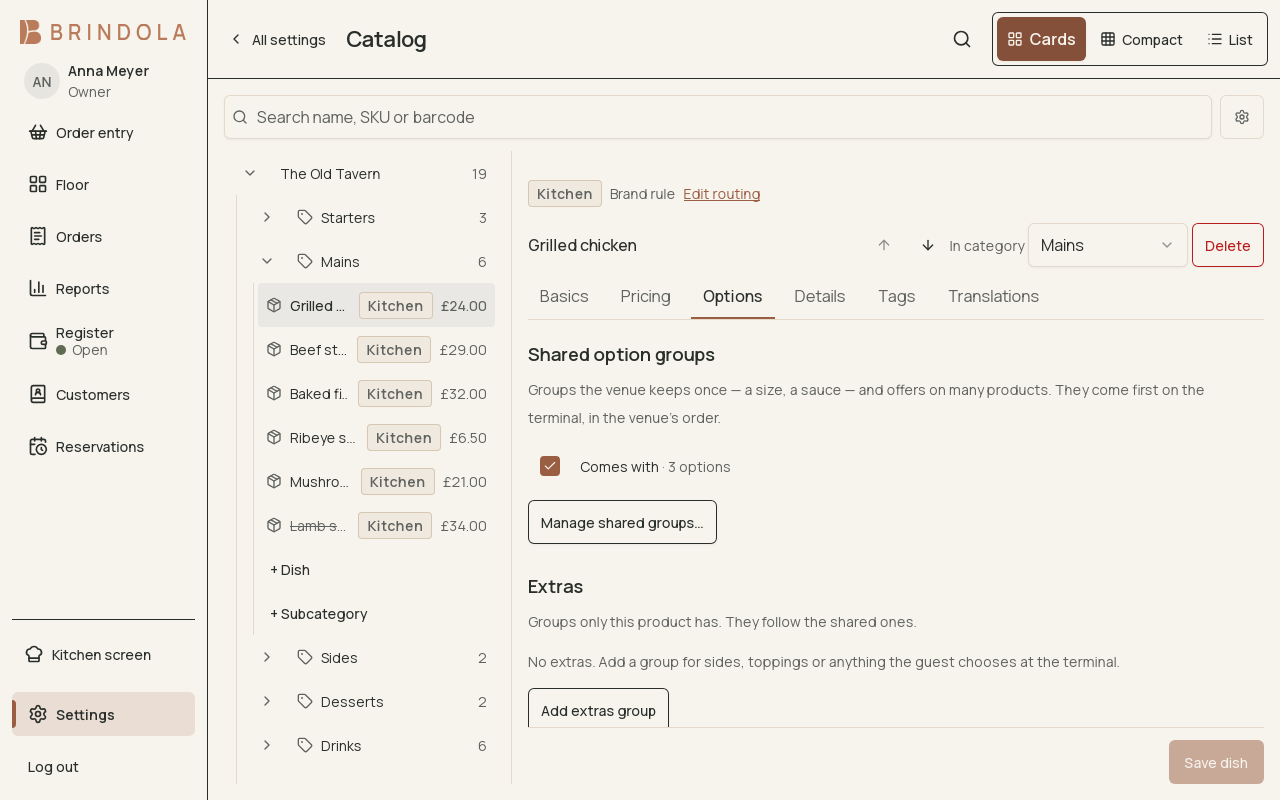
A dish in the catalog editor, on its Options tab: the shared option group it offers.
The catalog holds products, prices and the information used on orders, receipts and kitchen tickets. In a standalone venue you maintain it in Brindola. A connected venue may receive these facts from its backoffice.
Add or review a product
Section titled “Add or review a product”- Open the catalog and choose the item to edit, or create one in the appropriate section.
- Enter the name staff recognise, the selling price and the applicable tax category.
- Add the identifiers you use, such as SKU and barcode. Check that a scan finds the intended product.
- Add modifiers, preparation information and station routing when the product needs them.
- Save, then open the item in Order entry to check the customer’s actual choices and total.
Use sections to make the selling screen easy to scan. A product’s name on the tile, receipt and kitchen ticket should remain recognisable to the people using each surface.
Modifiers and included choices
Section titled “Modifiers and included choices”A modifier group can require a choice, allow several choices or charge for an option. Test both the usual choice and the most expensive valid combination. An included ingredient that staff remove must reach the kitchen as an instruction.
Allergen and age-restriction information helps staff make decisions. Keep it current when a recipe or supplier changes; a badge cannot replace knowing what is in the product.
Prices, units and stock
Section titled “Prices, units and stock”Check how an item is sold: a piece, a weight or a pack. A pack’s stock relationship must match what leaves the shelf. Inventory explains receiving and counting those units.
Review channel-specific tax and pricing choices before a service. Existing order lines retain the values recorded when they were created; editing today’s catalog is not a correction to an old receipt.
Connected catalogs
Section titled “Connected catalogs”If a setting is managed centrally, correct it in the owning backoffice and check sync status. Avoid creating a local substitute for an item that is waiting to sync. Archive an item you stop selling so its historical orders remain understandable.