
Open and close the register
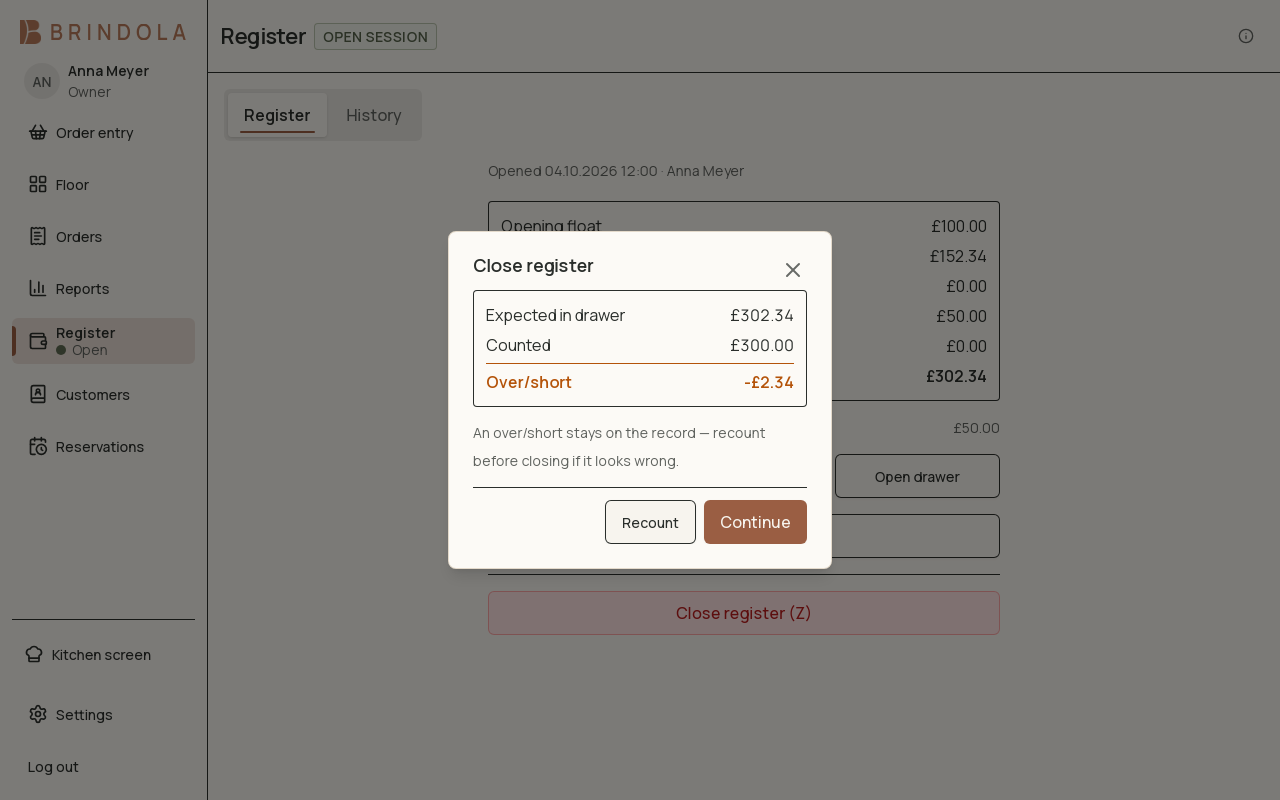
Expected cash, counted cash and the difference before confirmation.
The register is Brindola’s record of the cash drawer for a working session: the float it opens with, every cash payment, pay-in and drop, and the count it closes with. Closing it with a Z ends the session and the trading day’s count. Orders can be taken while it is closed; payments cannot.
- Open with a float
- Trade, pay in, drop
- X report at any time
- Count the drawer
- Close with a Z
Before you start
Section titled “Before you start”| You need | Why |
|---|---|
| The Register page, in the side menu | The register lives there, with a Register and a History tab. |
| Permission to close the register | Closing needs Close the register; pay-ins, drops and opening the drawer need Pay in, drop, pay out or open the drawer. Set under Settings → Staff. |
| A cash drawer, if you take cash | Optional. See Set up printers and the cash drawer. |
A venue has one register open at a time.
1. Open the register
Section titled “1. Open the register”- Open Register.
- Count the cash you start with and type it in Opening float. A blank float opens at zero.
- Select Open register.
The page shows Opened 08:55 · Anna and the session’s running totals. Until it is open, the order screen shows Register closed — orders can be taken, payments can’t. Tap to open it.
2. During the day
Section titled “2. During the day”The Register tab keeps a running count: the opening float, cash sales (net of change), cash tips, cash refunds, pay-ins and drops, and Expected in drawer.
- Pay in: cash added to the drawer, such as more change. Select Pay in, type the Amount and a Reason.
- Drop: cash taken out, such as to the safe, a supplier or staff tips. Select Drop, the amount and a reason; Tips paid out fills the reason for you.
- Open drawer: opens the drawer without a sale. It asks Why is the drawer opening?, with Change and Correction as one-tap reasons.
Every movement keeps its reason, its time and who made it.
X report — preview & print shows the session so far. Nothing closes and nothing resets: print it as often as you like, from the preview with Print or Save PDF.
3. Close the register
Section titled “3. Close the register”Select Close register (Z). The close takes three steps.
- Open orders. If any order or tab is still open, the close lists it (Still open from… for an earlier day). Settle it, select Write off and say what happened, or answer Why is the drawer being closed with these open?. Open tabs carry on after the close.
- Count. Count the drawer, notes and coins including the float, and type the total in Counted.
- Check. Brindola shows Expected, Counted and Over/short, or Drawer balanced. If the difference looks wrong, select Recount. An over/short stays on the record.
Confirm with Close register. Register closed confirms it, and the Z copy prints. View day report opens the day’s figures.
If your country uses a fiscal device, run its Z report and record its number in Z ref; where the device is connected, Brindola asks it for you. The Z copy Brindola prints is the venue’s own record, not the fiscal report.
Past midnight
Section titled “Past midnight”A service running past midnight keeps the date it opened on until the time set under Settings → Hours in A new business day starts at (6:00 by default). Sales after that time belong to the new day. If the register is still open then, it warns Still open from… — count and close it: sales keep counting into the same drawer, but each trading day should have its own count and Z.
After the close
Section titled “After the close”- Reprint a Z: Register → History, then Z copy on that day’s row.
- The day’s figures: Reports, the Day tab.
- Open again on the same day: open the register again. The new session is Session #2 of the same business day.
- A backoffice, if your venue has one, receives the day’s totals only, never the individual orders, and the close waits in a queue until the connection is back.
Questions
Section titled “Questions”Can I reopen a closed register?
Section titled “Can I reopen a closed register?”No. A closed session stays closed. Open a new session to keep trading; it belongs to the same business day.
How do I refund after the close?
Section titled “How do I refund after the close?”Open the register again on the same business day and refund from the order. A refund needs an open register and the same business day as the sale.
Do I count notes and coins separately?
Section titled “Do I count notes and coins separately?”Not in Brindola. Count the drawer and type the total.
Do staff see the expected amount while counting?
Section titled “Do staff see the expected amount while counting?”Yes. Expected in drawer is on the Register tab throughout; Brindola has no blind count.
Can I take payments while the register is closed?
Section titled “Can I take payments while the register is closed?”No. Orders can be taken and sent to the kitchen, but every payment, tip and refund needs an open register.
Does closing need the internet?
Section titled “Does closing need the internet?”No. The close happens on the main device. If you sync to a backoffice, the day’s totals are sent when the connection is back. See When the internet goes down.