
Order entry
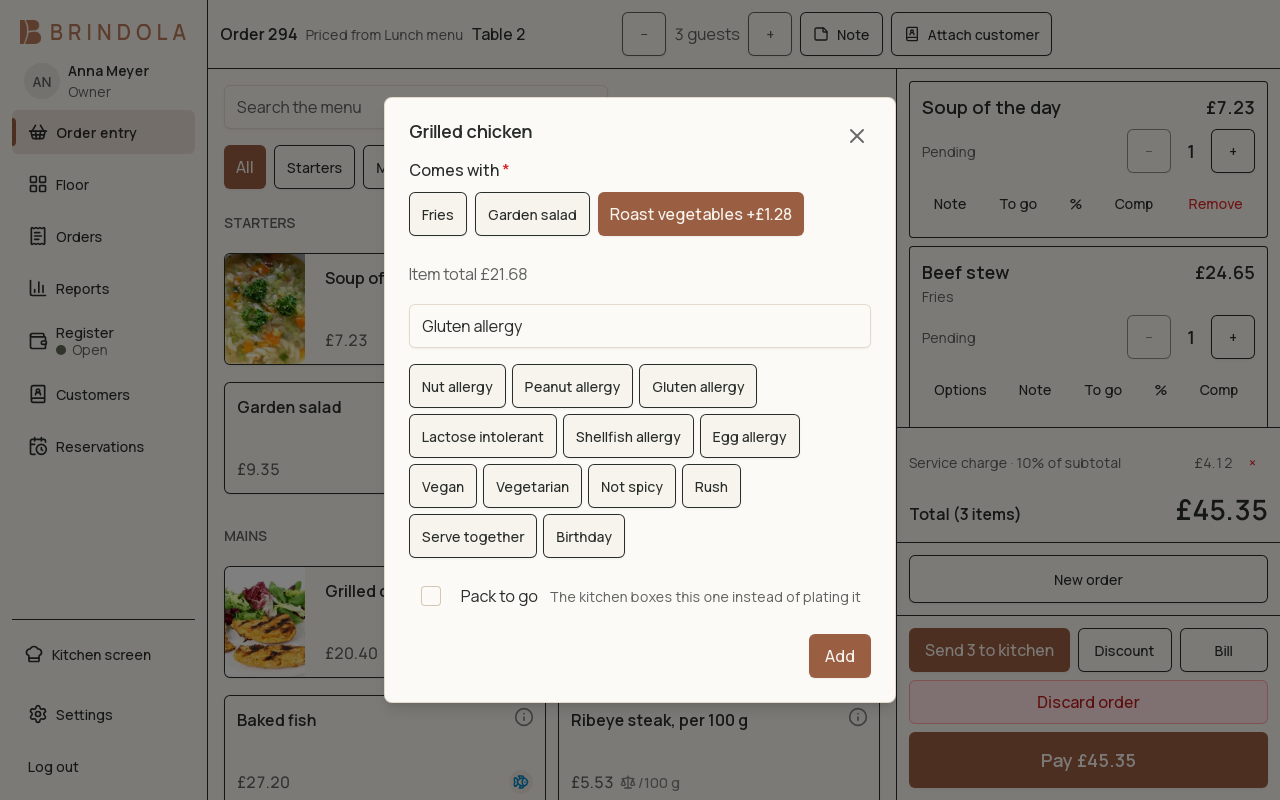
An item with required choices and the pending order visible together.
Start at the counter or open a table from the floor plan. Before adding items, confirm the order type: eat-in, take-away or delivery can affect the available choices and charges.
Build the order
Section titled “Build the order”- Select a catalog section or search for an item. Use a barcode for a product that has one.
- Open the item and choose its required modifiers. Check quantity, notes and any price changes.
- Add the item to the order. Review the lines, guest count and customer where applicable.
- Assign courses when the venue uses them, then send the items that should be prepared now.
- Continue adding to the same order as guests ask for more.
- Choose item and modifiers
- Review pending line
- Send for preparation
- Prepare and serve
- Settle the bill
Before and after sending
Section titled “Before and after sending”A line the kitchen has not received can be removed. Once a line has been sent, use the void flow and provide the required reason and approval. The kitchen needs to see the cancellation; deleting a note or changing the quantity elsewhere is not a replacement for a void.
Required modifier choices must be completed before adding the item. Removing an included ingredient is a deliberate instruction, so read the modifier summary before sending. Keep preparation notes on the item they concern.
Move on to payment
Section titled “Move on to payment”Open Payments and check the remaining balance. If guests need separate bills, split there. Keep the order available until its remaining balance is resolved.
If something looks wrong
Section titled “If something looks wrong”A missing product may belong to another section or brand, be archived, or be filtered out. Check the catalog before creating a duplicate. If an action requests approval, use an authorised person’s PIN; see Staff and permissions.