
Product
Everything your venue does, in one system you own
Brindola is a modern POS that runs every screen in your venue on your own hardware, adapts to how your place works, and keeps trading when the internet does not. Here is what that looks like screen by screen.
One device in your venue runs the show
One device in your venue runs the show and every screen talks to it over your own network. Add a terminal, a kitchen screen or a guest display and it joins in minutes; lose the internet and nothing on the floor changes.
Only what you need
Turn on what your place uses and nothing else
Every area on this page is a module. A café starts with order entry and payments and sees nothing else; the floor plan, the kitchen screens, stock, bookings and delivery intake switch on in settings the day you need them, in the same build. Your staff learn the screens your place uses, and the clutter stays off.
Ask questions about your business
Connect a compatible AI assistant to explore sales, products and service in plain language. AI assistants are included in Plus and the fourteen-day trial.
- Which products sold best last week?
- How did sales this week compare with last week?
- Which kitchen station had the longest service times?
Access is read-only and follows the connecting staff member’s permissions. The assistant currently runs on the main computer. If you choose a cloud model, the information it reads is sent to that provider.
Order entry
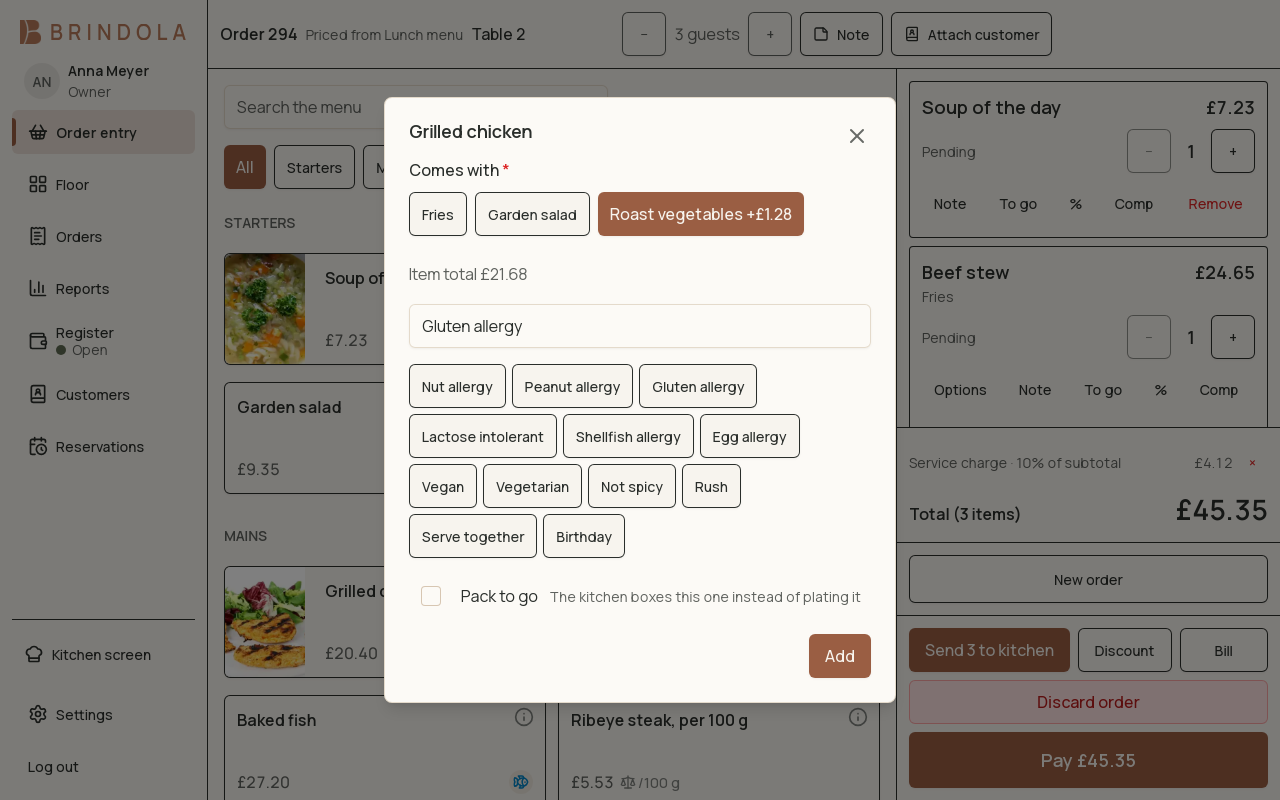
The screen your staff touch four hundred times a night, built to be fast with a full hand and a queue at the door. Brand tabs, sections, item tiles with photos, and an item sheet that answers "does this contain nuts?" at the table instead of at the pass.
- Modifier groups with price deltas, and included modifiers that print NO ONION when you untick them
- Courses, guest counts, notes, allergen chips and an 18+ badge
- Re-tap a tile to bump the quantity on a line the kitchen has not seen; a stacked line splits back apart
- A pending line is just removed; a fired line is voided with a manager PIN and a reason, on the record
- Pick items and modifiers
- Send to the kitchen
- Take payment
- Close with the day
Floor plan
Made forRestaurantsBars and pubs
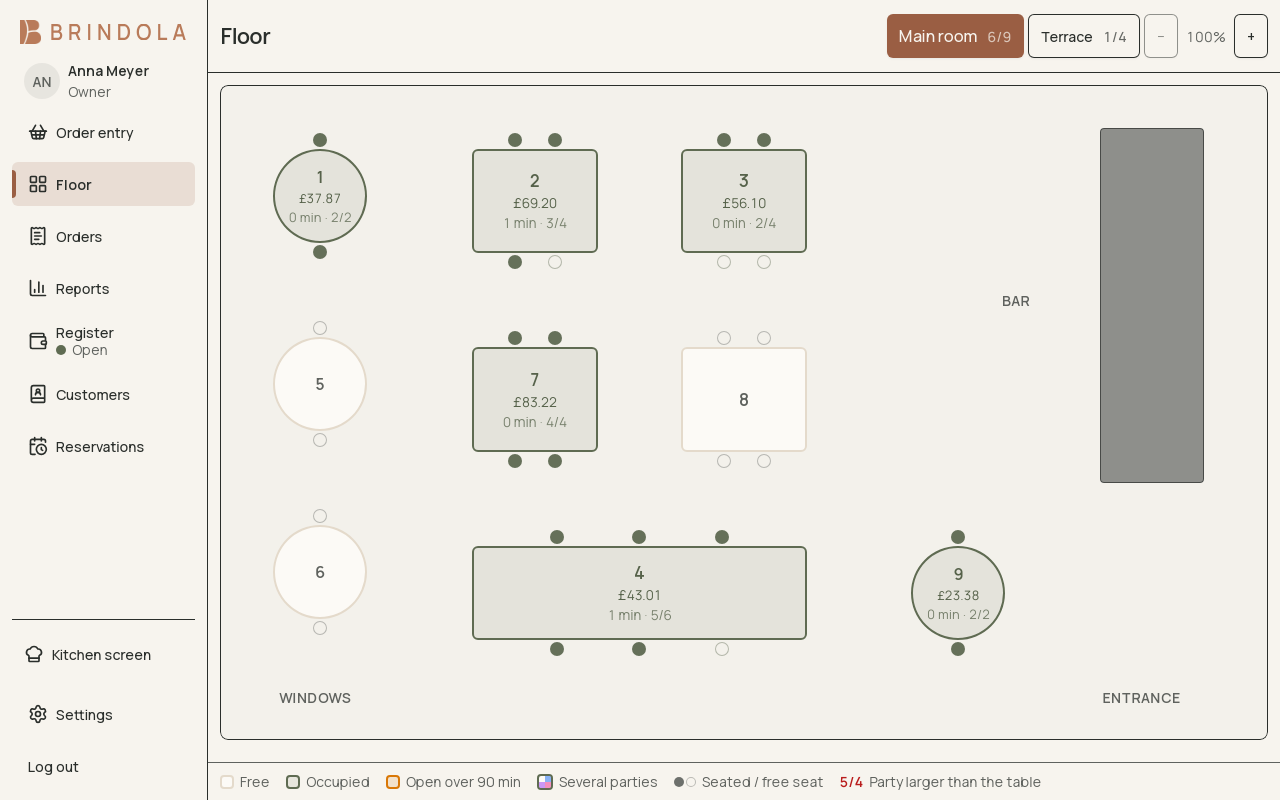
Draw your room once and work from the picture forever. Zones with their own colours, real table shapes including bar counters, chairs that fill as guests are seated, and decor so the plan looks like the room instead of a spreadsheet.
- A built-in editor with drag, resize, rotate, duplicate, per-corner rounding and undo
- Tap a free table to open an order, an occupied one to resume it, and drag to move a party
- Two parties on one table when the night calls for it
- Take-away and delivery orders sit in the same open-orders list as the room
Kitchen display
Made forRestaurantsDark kitchens
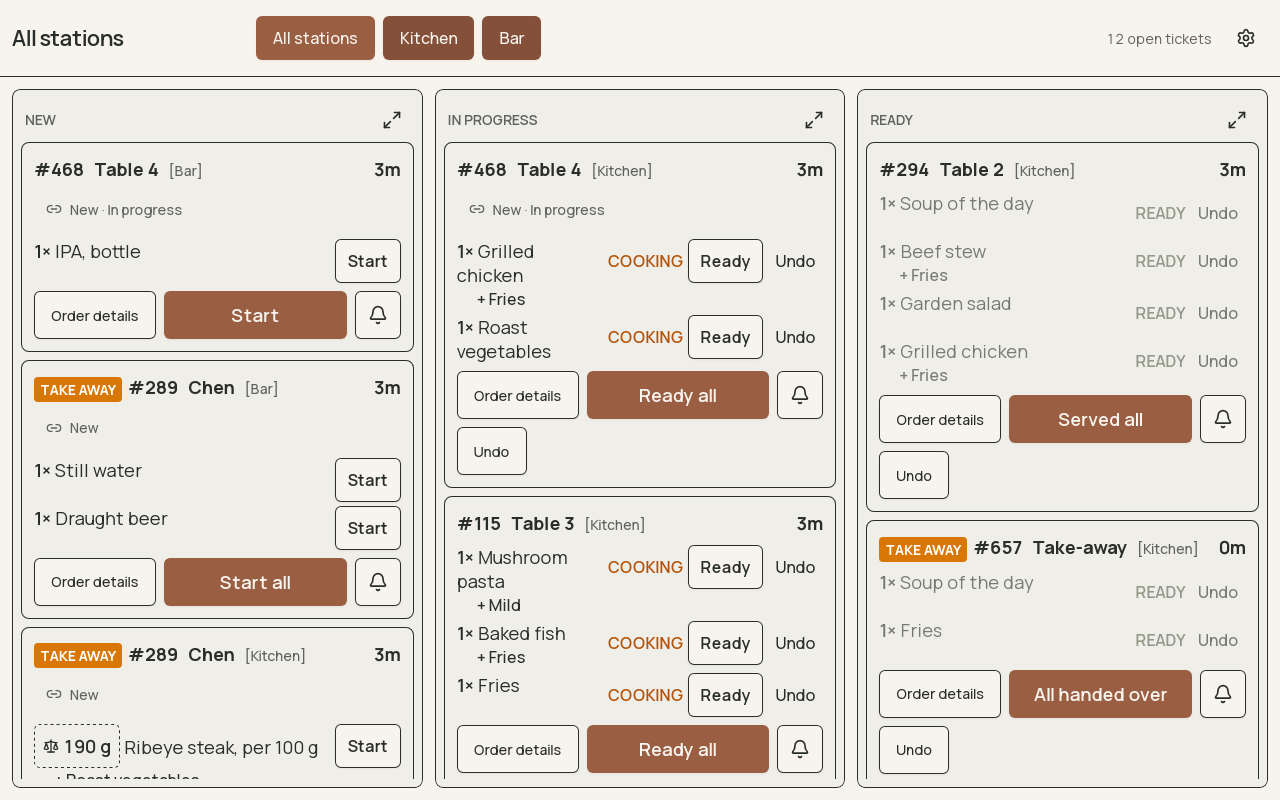
Tickets routed to the station that cooks them, grouped by course, with age timers that turn amber and then red so nothing waits unnoticed. Expo mode puts every station on one screen for the person running the pass.
- New, ready and served, with a short grace period to undo a wrong bump
- Modifiers one per row, so the line cook reads them from a metre away
- Kitchen printers work as a fallback or alongside; an order rung on a floor tablet fires the printer in the kitchen
- Dining-room and delivery-platform orders on the same screen, each ticket wearing the platform's mark and, where you run several brands, its brand's colour
- Kitchen times are reported later in percentiles, because one forgotten ticket ruins a mean
- Sent from a terminal
- Routed to its station
- Start, then Ready
- Served or handed over
Guest displays and the kiosk
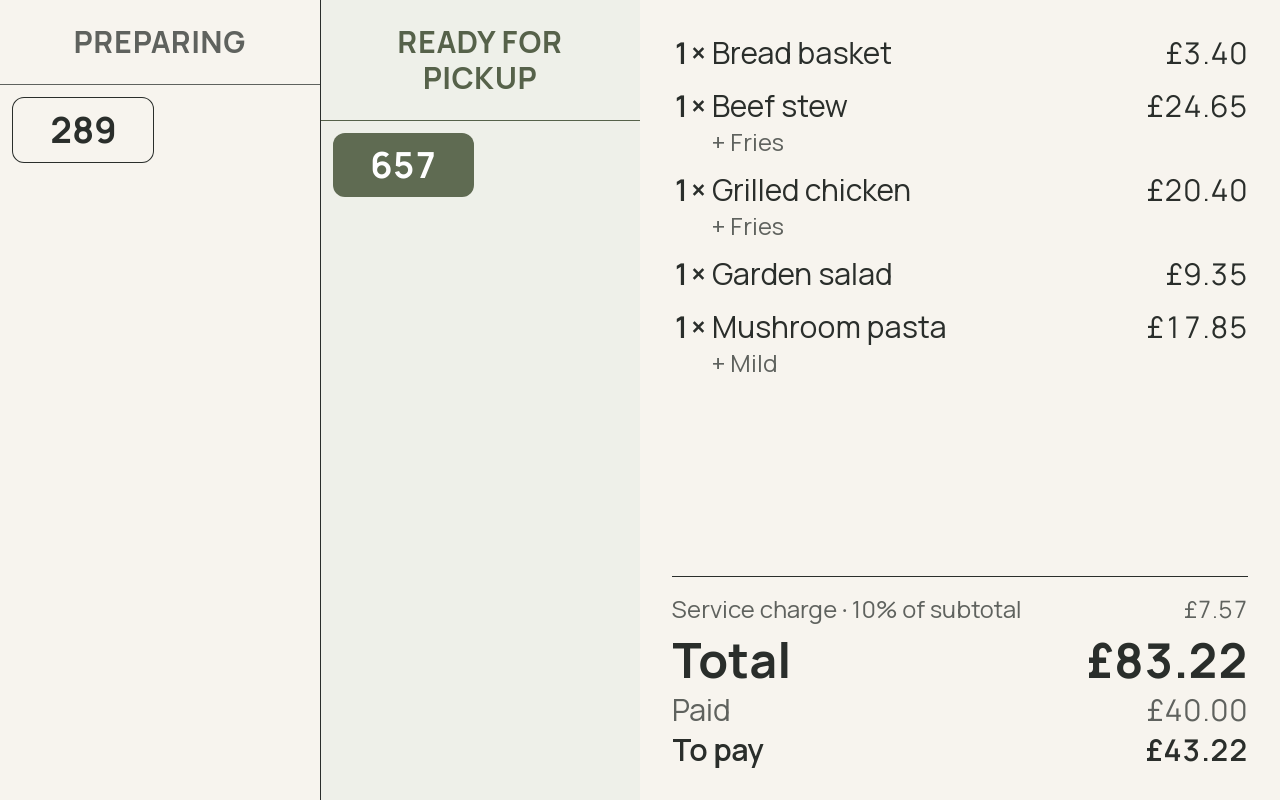
A second screen turned to the guest, a board turned to the queue, and a kiosk where guests order for themselves. All of them are fed by the same tickets the terminal and the kitchen already share, so there is nothing to sync and nothing to key twice.
- A customer-facing order display that mirrors the bill line by line, with every automatic charge shown before the card goes in
- A pickup board showing preparing and ready, derived from the same tickets the kitchen sees
- A self-service kiosk where guests pick their language, eat in or take away, and build the order from the catalog with photos, allergens and options, then tap Confirm for an order number, printed on a slip where the kiosk has a printer
- Kiosk orders are paid at the counter by their number and reach the kitchen screen and the pickup board like any counter order; paying by card at the kiosk itself is planned
- Any screen on the venue's network; the main device serves it, so the internet is not in the loop
- Shown in the guest's language where the app has it
Payments and fiscal
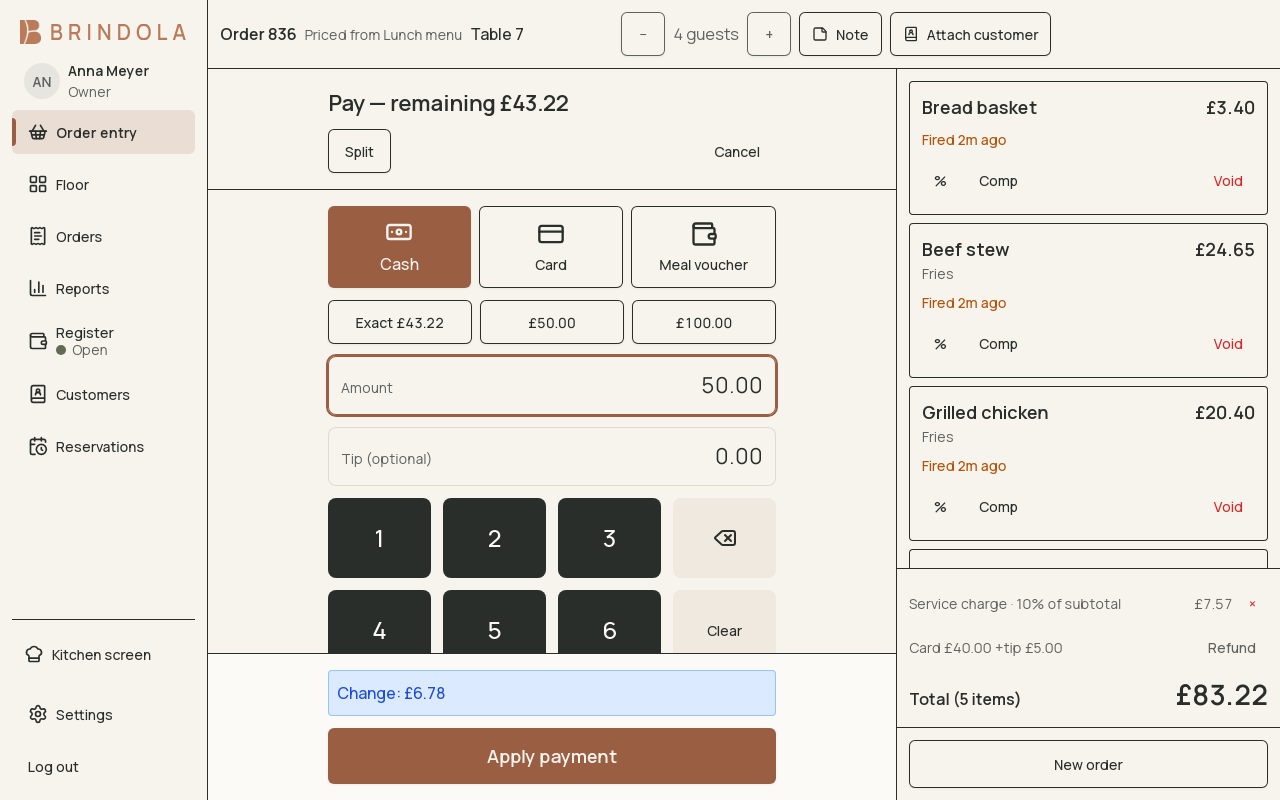
Cash, card, platform and anything else you take, with as many named payment options on top as you have terminals. Splits, tips, change, card fees and cover charges, and the drawer agrees with the report at close.
- Register sessions with float, pay-ins and drops, expected against counted, over-and-short
- X reports mid-day and Z at close; refunds and reopens straight from the day log
- Per-option surcharges and per-channel automatic charges, including a per-guest cover
- Cards are taken on your bank's own terminal, beside Brindola and on its own connection; the payment is recorded with the terminal's receipt number, internet or not
- A fiscal seam per country, with the fiscal path stamped on each tender so a settings change never rewrites history
- Open the register
- Take cash, card or a split
- Count the drawer
- Close with a Z
Stock and deliveries
Made forShops and stores
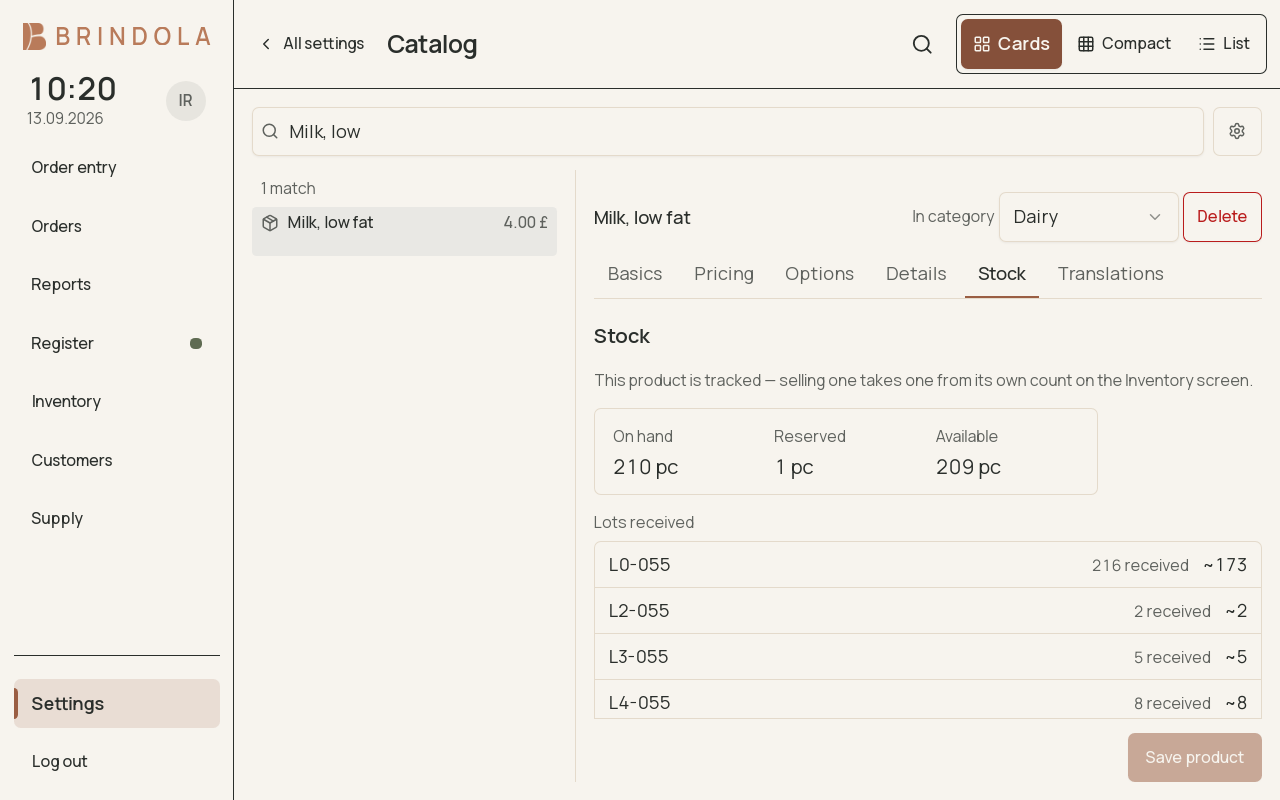
Stock is kept at three levels: product, stock unit, and lot or serial. An open order reserves stock, a settled tender depletes it, and a reopen reverses it exactly. Nothing on the selling path ever blocks on a count.
- Receive a delivery as one document; the first delivery starts tracking an item on its own
- Stocktakes where an unfilled line means "not counted today", never zero
- Waste, breakage, theft, expiry and correction as named causes, not free text
- A ten-pack that depletes ten singles, and stock counts pushed out to your delivery platforms
Order supplies and know what is still due
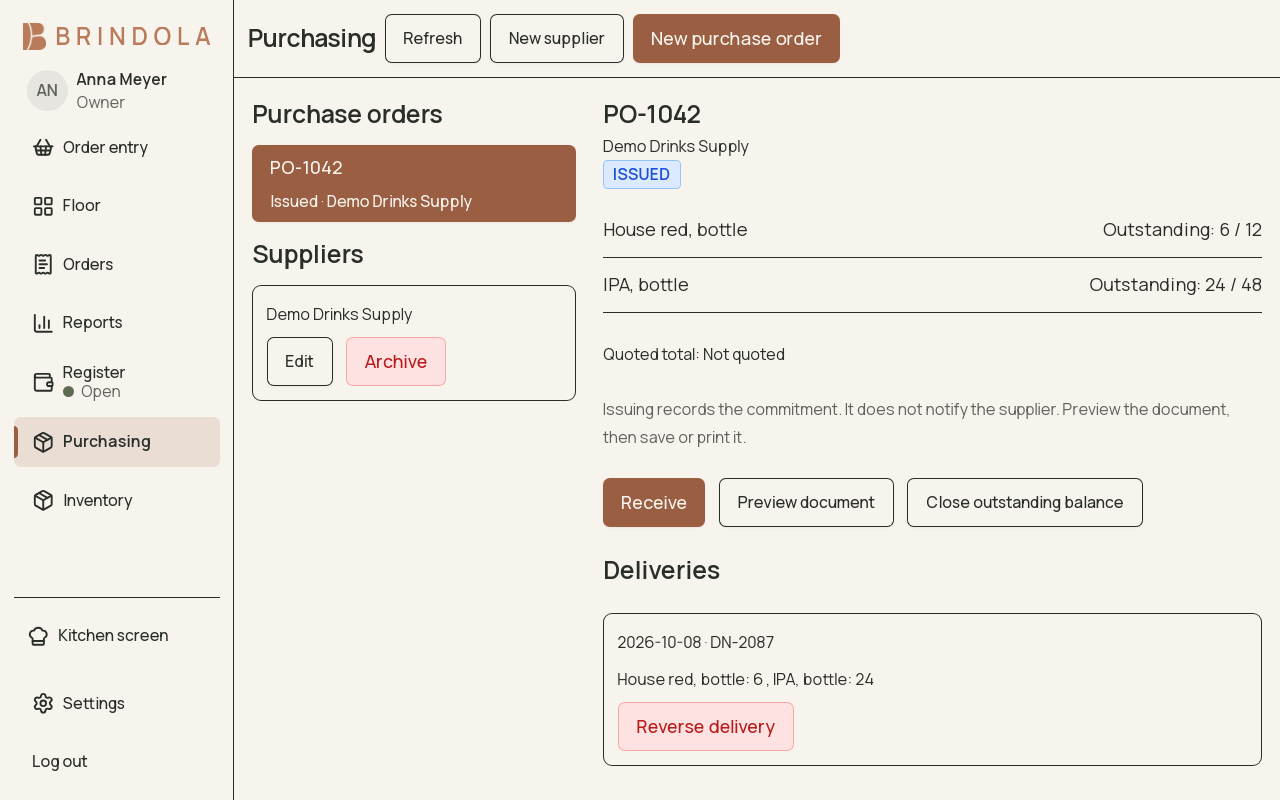
Keep supplier details and purchase orders with the stock they replenish. Receive part of an order today and the rest later, with the outstanding quantity beside each line. The work stays available without internet.
- Draft and issue supplier orders with quantities, pack prices and delivery details
- Print a purchase order, save a PDF or queue an email to the supplier
- Receive deliveries into Inventory once, with a record of each partial receipt
- Close an order with a reason when no more goods are expected
Guests and companies
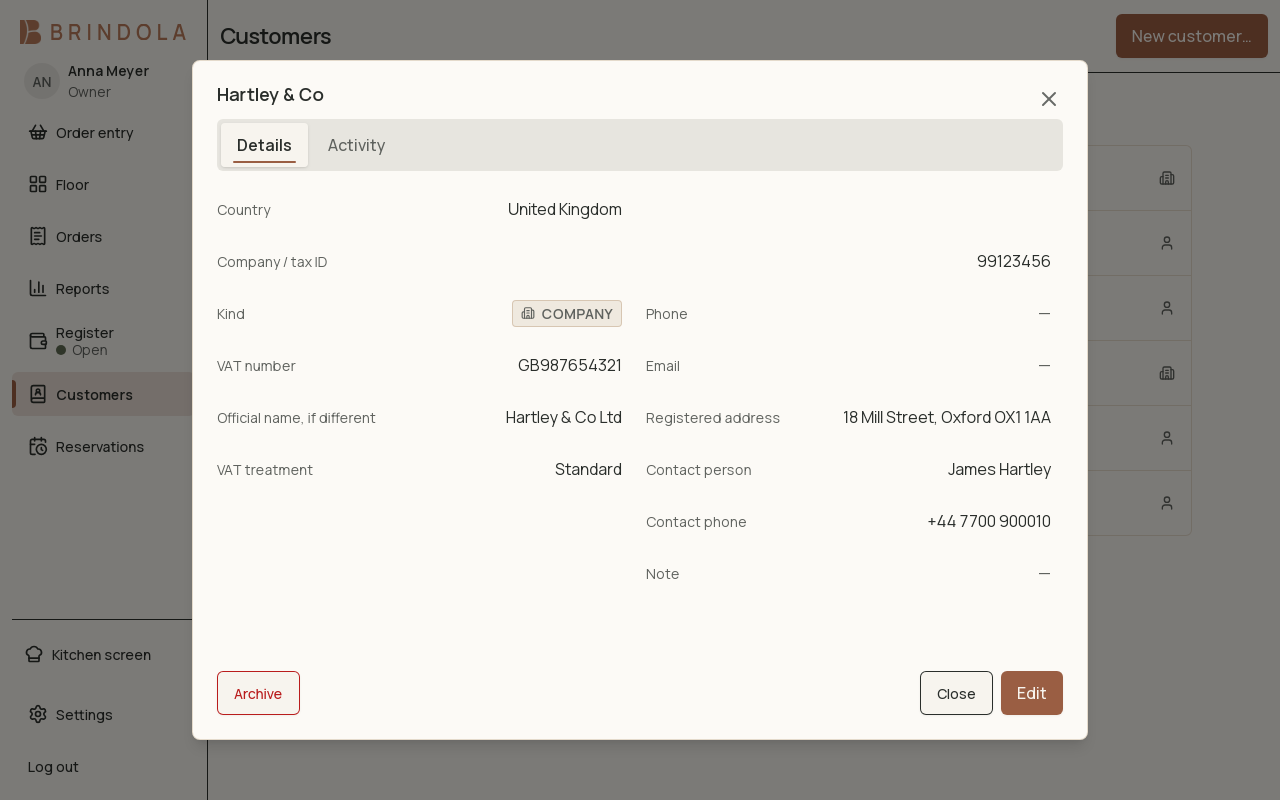
One registry for the walk-in who wants a receipt in their name and the company that needs a tax invoice. Identifiers are validated against published rules for around a hundred countries, so a mistake is caught before the document is made.
- Individuals and companies, with legal names kept in the local script and in Latin where that matters
- VAT numbers understood by country prefix, and VAT exemption stamped onto every line
- A phone number stored as written and searched as digits
- Records are archived and never deleted, so the history a guest is attached to stays intact
Delivery order intake
Made forDark kitchens
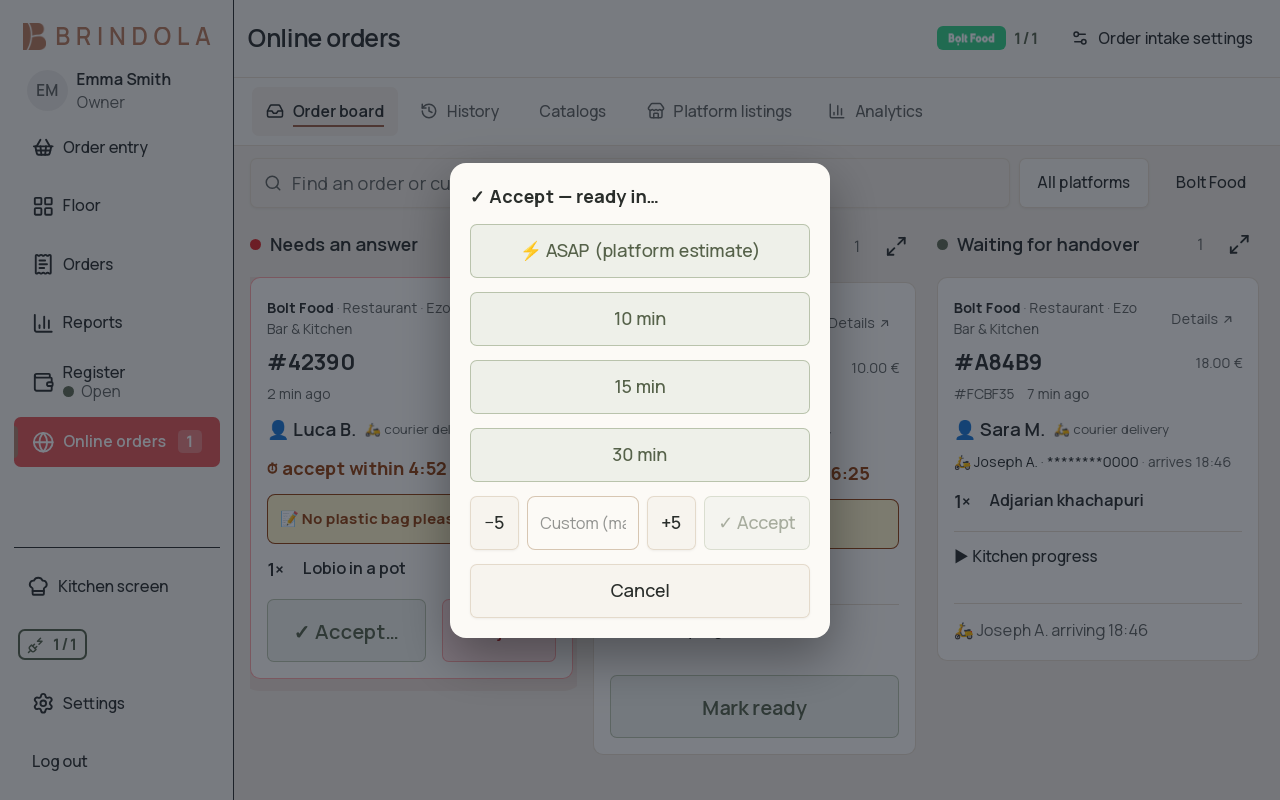
Platform orders arrive over our own order bridge and become ordinary orders in your venue: they hit the kitchen display, they close with the day, and nobody re-types them into the terminal at eleven at night.
- An inbox with the platform's own accept deadline counting down, and a prep-time picker
- Auto-accept when you want it, and cancellations that strike the ticket through on the kitchen screen
- Publish this terminal's menu, opening hours and stock counts out to the platform from the same screen
- Your venue rides our integrator registration, which is how a single restaurant gets an integration at all
- Bolt Food
- Glovo
- Coming soon
- Wolt
- The platform order arrives
- Accept before the deadline
- On the kitchen screen
- Closes with the day
Multi-brand and virtual kitchens
Made forDark kitchens
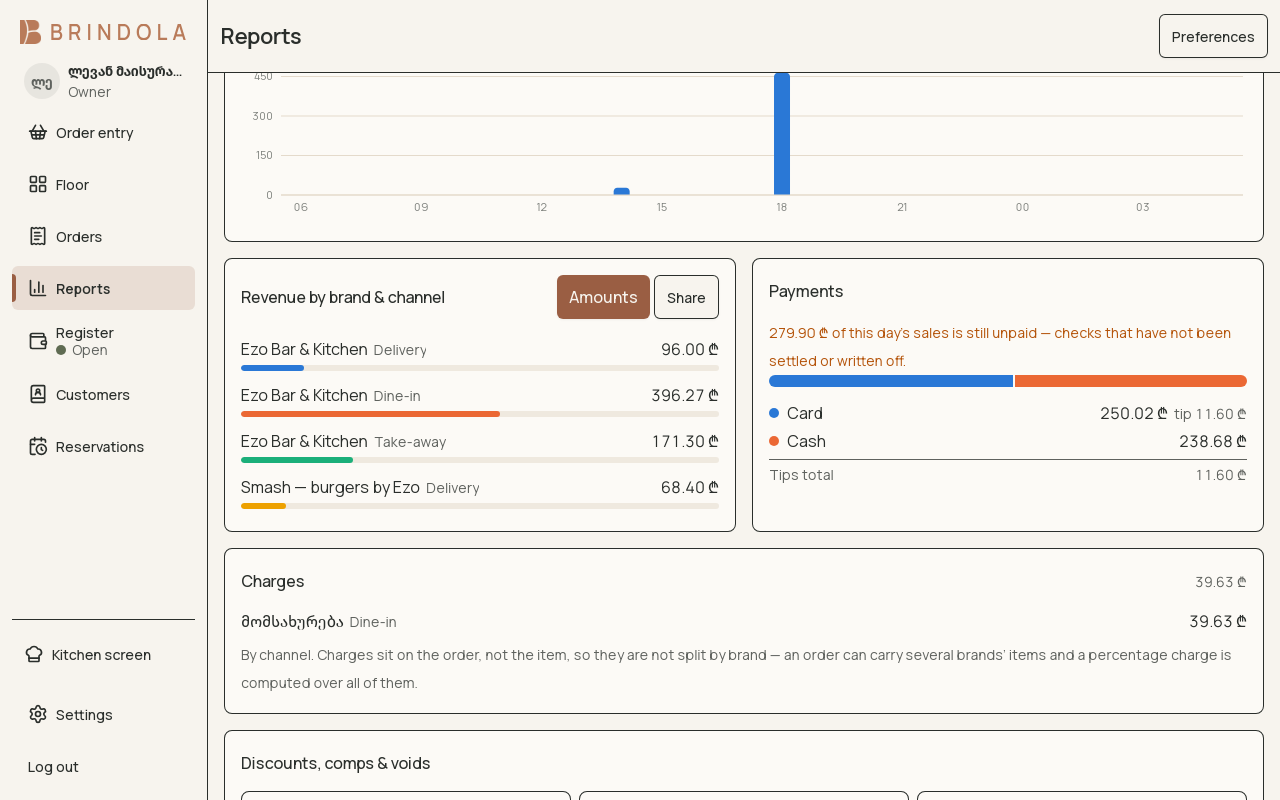
If you run three brands out of one line, Brindola was written for you. Brand is a property of the food, stamped onto each line, so a single delivery order can carry two brands and still report correctly.
- Per-brand tabs and per-brand menus on the order screen
- Revenue and item reporting by brand and by channel, together
- Brand resolved per line, most specific first, so a mixed basket is never guesswork
- One venue, one licence, however many brands you decide to launch
Reporting on the device
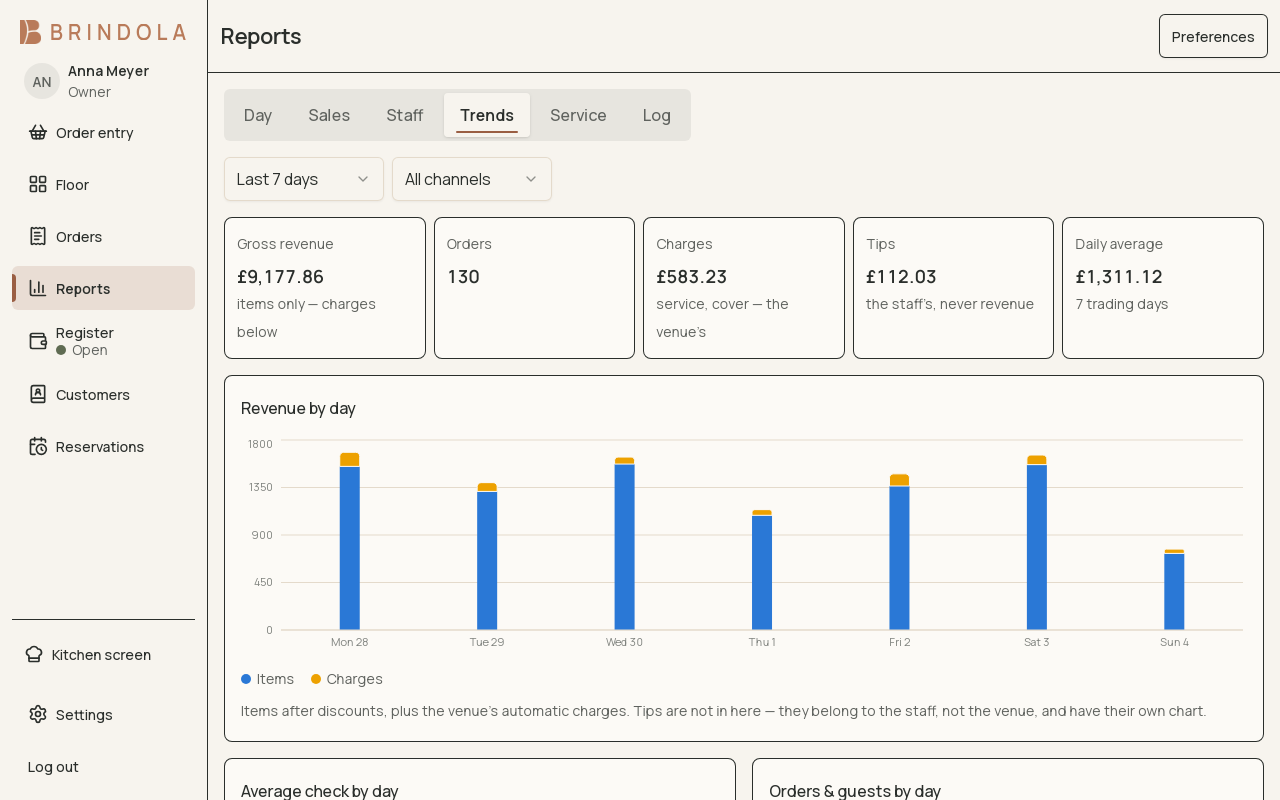
Every report runs against the data already in the building, over the current year and the two before it. Nothing calls the network, so the numbers are there at 2 a.m. with the line down.
- The day's gross, orders, average check and hourly curve, on your own business day
- Dish analysis over any range, filtered by brand, channel, daypart or section, with each dish's own history
- Staff revenue and tips with the tip rate beside them, and loss control split into taken and approved
- Service times per station as percentiles, table turns, peak occupancy against the room's real seat count
Cameras
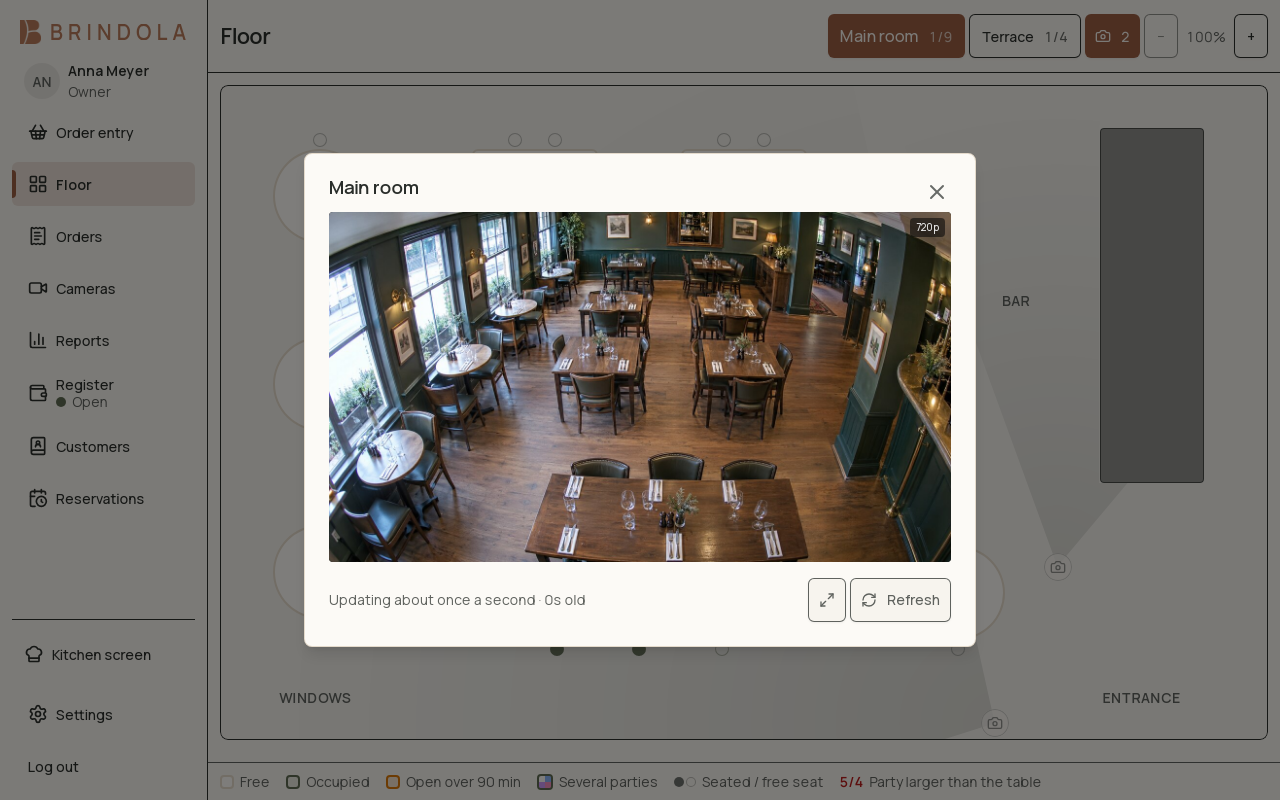
Cameras placed on the same floor plan as your tables, each with its viewing angle drawn as a cone. Tap a table and the plan offers the camera that can see it. Nothing is recorded here; your recorder keeps doing that.
- UniFi Protect and plain RTSP, several per venue, grouped by guest area, back office and outside
- Camera credentials stay on the main device; every other screen is served by it
- A wall of live views for the manager, and a single camera from a table's card on the floor plan
Devices, printers and the network
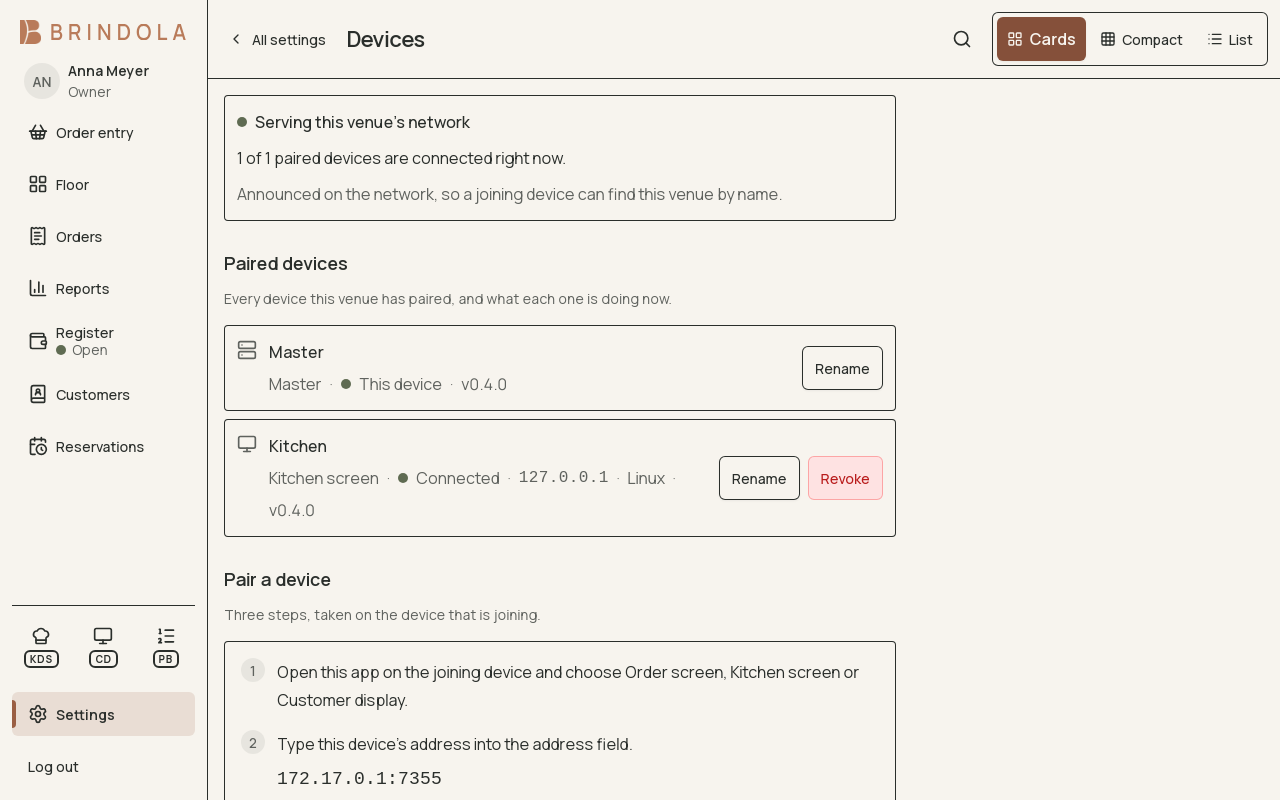
Multi-device is off until you ask for it. Turn it on and one device runs the venue and serves the rest over your own network. A new screen joins with a six-digit code, and there is no cloud in the path, so every screen and printer here keeps working when the internet goes down.
- Receipt printing over network, USB or the operating system's spooler, with a capability probe that reports what the printer really is
- A4 and Letter documents from the same engine, such as invoices, count sheets and goods received notes
- A cash drawer kicked through the printer that owns it
- A screen that loses the network keeps working and lands its orders when it is back; another device can take over the main role if a machine dies
- Phones and tablets join with the Brindola app, as a second terminal, an order screen at the table, a stock count, a kitchen screen, a guest display or a kiosk
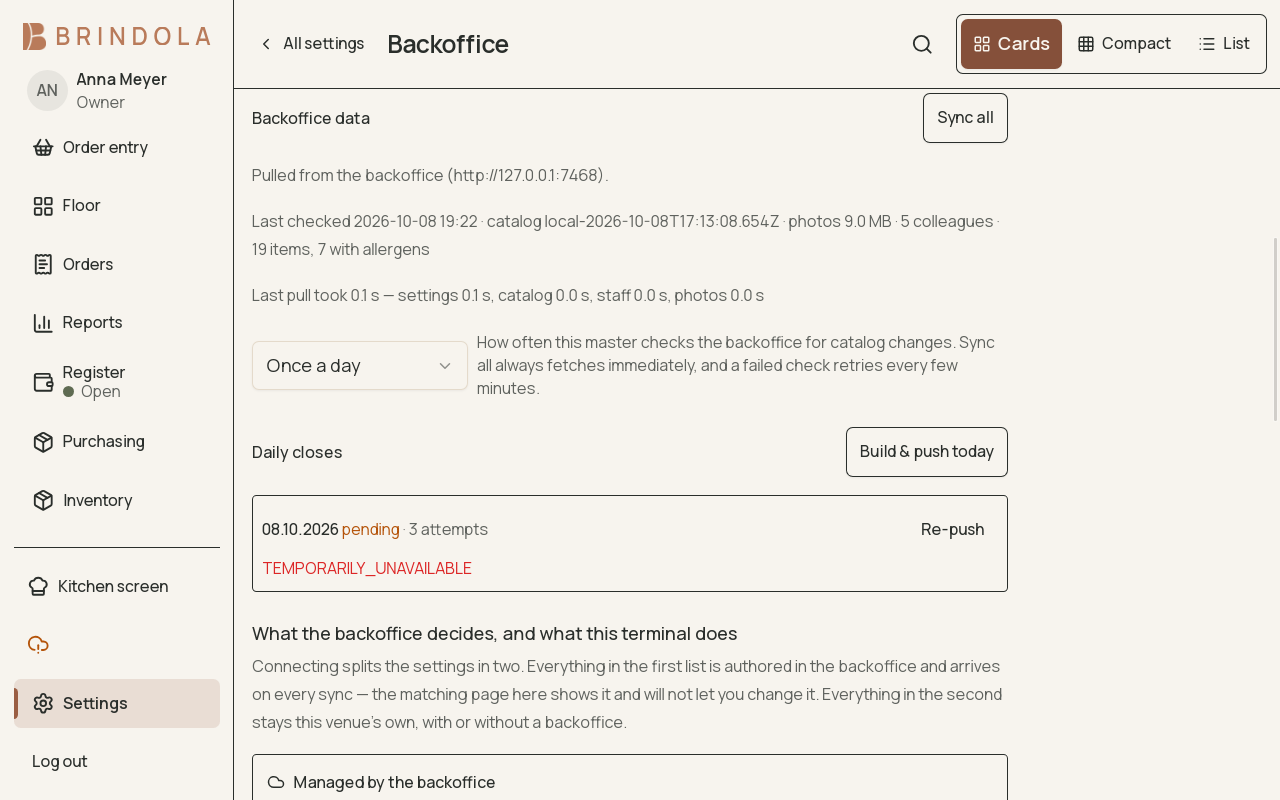
Keep your catalog in step with your backoffice
Changes reach the terminal without re-entering the same products. Aggregate closes are sent when a connection is available.
- Catalog updates arrive automatically
- Closes wait for connectivity and retry automatically
- See whether your backoffice connection needs attention
- Detailed venue records stay on your own equipment
More of the work you do every day
Bring your product list
Import CSV with column mapping and a preview, or export your catalog for a portable copy. Start from your existing list instead of typing every product again.
Bookings that become orders
Book tables or staff, check the day’s timeline and open an order from the booking. Keep walk-ins and reservations in the same working day.
Prices for the way you sell
Use price lists and rules for customer categories, order types, channels and dayparts. Keep delivery prices separate and see an item’s margin from the cost you enter.
A language for each audience
Choose interface, document and guest-display languages separately. Your team can work in one language while the customer reads another.
Control who can do what
Set staff roles and permissions, with manager approval for sensitive actions. Decide who may change prices, handle corrections or see reports.
Paperwork that fits the job
Use branded receipts and office documents, gift receipts and bag slips. Add packaging to relevant takeaway and delivery orders, with stock handled as products.
Keep a copy beyond the terminal
Schedule backups and configure an encrypted copy to a destination you control. Keep that destination off the main disk and store the recovery passphrase safely.
Customers and stock, together
Keep customer and company records, organise customer groups, receive stock and record counts or waste. Enable the tools your counter actually needs.
The fastest way to judge this is to run it
Fourteen days on the full Plus plan, on your own hardware, with your own menu. There is no card and no call, and you run the real thing rather than a demo environment that behaves differently.